
You can export a copy of content in your Google Account to back it up or use it with a service outside of Google.
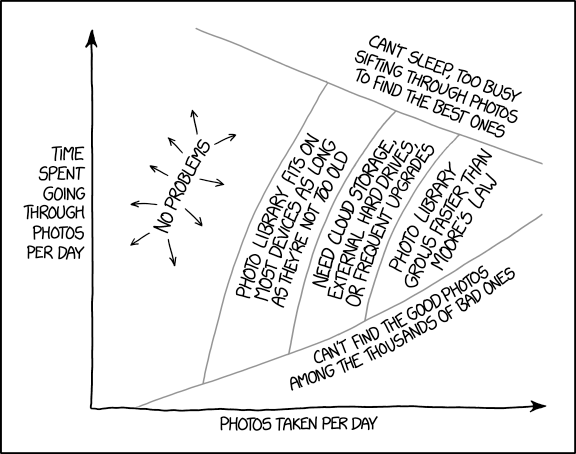
This is quite the arduous task. See the above comic from XKCD for why!
TL:DR – I need to organise my Photo Libraries. First step is to get them all into one place, locally. This is a work in progress
Contents
Using Google Takeout to export your photos
- Go to the website takeout.google.com
- Select the data you wish to export
- Tell google how to split up the archive files it creates
- Click continue and then wait for it to be completed
- Download the archives for further processing


Using Apple Photos to export your photos
- Open Photos
- In Settings select "Download originals to this Mac"
- You can see the progress on the main window at the bottom
- Wait for it to finish
- Select All
- Choose File, Export unmodified originals and then select the folder to save into
- Wait for it to finish


De-duplication of photos
Disk Drill has a duplicate finder which is free to use.


It found 1.4 GB of duplicates. Thats pretty cool. Lots of detail to look at but they look like a lot can just be deleted. This bit however is manual! At least I know the duplicates are there and dont lose the will to live by deleting the same image multiple times. Disk Drill is able to spot duplicates with different file names so that is a bonus! See the second screenshot below.


Now you can Smart Select to keep the newest and remove all the duplicates in one operation.


Finding all the folders with images for consolidation
My Mac has tons of folders given the data on it is in some cases decades old. So theres some detective work to do here to find them all. I'll have a think how to automate that.
