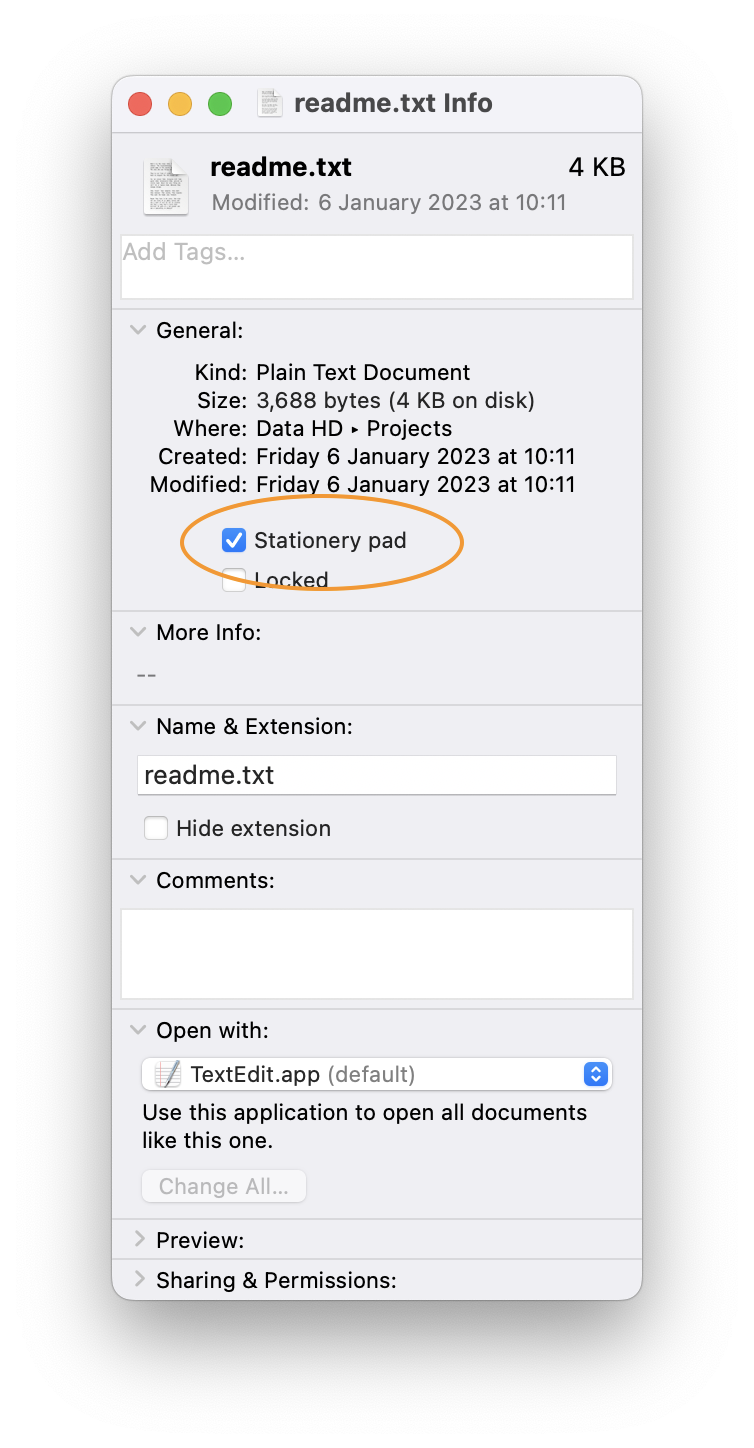
The Stationery Pad checkbox is a surprisingly under-utilised tool. Let's explore what Stationery Pad is, how you can leverage it to create templates, and the various scenarios where it can simplify your workflows. For many users, mastering this feature can significantly enhance your productivity as you navigate your document-centric tasks.
TL:DR – The Stationery Pad feature in macOS allows users to create template documents that ensure the original files remain unchanged. To use it efficiently, select a document, enable the Stationery Pad option, and whenever you open that document, Finder will generate a new copy that you can edit without the risk of altering the original.
Understanding macOS Stationery Pad
The Stationery Pad is more than just an obscure checkbox lurking in the information window of your documents; it serves a pivotal function within macOS file management. Enabling the Stationery Pad feature effectively transforms your selected document into a template, allowing you to create copies of it without accidentally overwriting the original. This functionality is beneficial in numerous workflows, especially when dealing with repetitive tasks or standardised documentation.
Imagine writing up reports, memos, or any form of correspondence that requires a consistent format. The Stationery Pad enables users to open a document template, edit it for current needs, and save the new version independently. This leaves your base template fully intact, ready for future use. While it sounds simple, the impact of this feature can resonate throughout an entire workflow, making it a game-changer for users who value organisational efficiencies.
How to enable the Stationery Pad feature
Getting started with macOS Stationery Pad is a straightforward process. First, you must select the document you wish to designate as a template. You can do this by right-clicking on the file and choosing "Get Info" or simply by pressing Command-I on your keyboard. Once you've opened the Get Info window, look for the 'Stationery Pad' option in the General section. By checking this option, you are now establishing the selected document as a stationery template.
However, it’s crucial to note that if this checkbox is not available or grayed out, a potential issue could be at play. This may indicate that the selected document is an alias or a restricted file type that doesn’t support editing. To troubleshoot, ensure that you’re working with an actual document file and not a copy or shortcut. This initial step is vital in ensuring that you can exploit the full capabilities of the Stationery Pad feature.
Editing the original file
While the idea of Stationery Pad revolves around creating copies, it’s equally important to understand how to revert back to editing the original document. If the need arises to make changes to the original file after you've enabled the Stationery Pad, simply revisit the Get Info window, uncheck the 'Stationery Pad' option, and make the necessary amendments. Remember that this action will allow full editing capabilities, which can be crucial if your workflows evolve over time.
After making your desired edits, you have the option to reactivate the stationery feature by following the same steps again. This cyclical process enhances flexibility and allows for an iterative approach to document management. Keeping your documents both editable and reusable is fundamental to maintaining productivity, especially within collaborative environments where changes are often required.
Practical applications of Stationery Pad
The beauty of the Stationery Pad feature lies in its versatility. You can employ it across various applications made available in macOS, from word processors like TextEdit to design software and spreadsheets. The ease with which users can generate templates aids in maintaining consistency in everyday tasks. For instance, creating standardised invoice templates could save hours of repetitive data entry, while also ensuring that all documentation maintains a professional appearance.
Moreover, you might find it beneficial in managing digital content for web development projects. Drafting skeleton files for HTML/CSS layouts means you can work from an established framework, streamlining your coding process. This level of application highlights how the Stationery Pad is not merely a niche feature, but rather a powerful asset that can adapt to an array of professional scenarios, thus enhancing efficiency significantly.
Comparisons with other template features
The Stationery Pad option holds its ground when juxtaposed with other template creation methods found within various applications. Built-in templates in programs like Microsoft Word or Pages come with pre-set layouts which, while efficient, may not always fit your specific needs. In contrast, the Stationery Pad allows you to create a template that embodies your unique requirements - insofar as it's based on an original file you've created.
This feature can be posited as a personal template creation tool that offers enhanced adaptability, particularly for those who have specific formatting or structural preferences. Consider it a blank canvas from which you can generate countless personalised iterations without disturbing the base material. For users who need that level of control over their documents, this is where the Stationery Pad distinguishes itself from programme-specific templates.
Limitations of the Stationery Pad feature
Despite its many advantages, the Stationery Pad does have some limitations that users should be aware of. It's not applicable to every type of file across macOS. For instance, image files or complex movie files may not benefit from this feature in a meaningful way. Similarly, certain proprietary formats may encounter compatibility issues when accessed through other applications, limiting their functionality.
Furthermore, users should be cognizant that the experience may differ based on the version of macOS currently in use. There may exist variations in how the feature performs across different iterations of the operating system. Users should regularly check for updates and enhancements that Apple may provide, as these can influence overall functionality and introduce new capabilities over time.
Saving time with the Stationery Pad feature
Automation and time management are critical in efficient workflows, and the macOS Stationery Pad feature stands as a testament to this principle. By allowing the automatic creation of document copies, users can eliminate the risks associated with the "Save As" command, which often leads to accidental file overwrites. Instead, the Stationery Pad ensures your workflow remains uninterrupted, thus the risk of mishaps is minimised.
Moreover, the clarity of knowing that each time you open a stationery document you are working with a fresh copy allows for more focused and productive sessions. This encourages users to engage with their work with less anxiety about loss or unintended alterations, fostering an environment where creativity can flourish.
In concluding our exploration of the macOS Stationery Pad feature, we find it to be an invaluable tool that, while simple in concept, offers considerable benefits to Mac users across various domains. By enabling templates through the Stationery Pad, one can preserve the integrity of original files while simultaneously enhancing productivity through efficient document management procedures. As we've seen from the discussions above, its application reaches far beyond basic word processing, playing a vital role in multiple professional arenas.
If you find yourself frequently needing to produce similar documents, consider adopting the Stationery Pad into your regular workflow. The process is straightforward and quickly amounts to a significant reduction in repetitive wear on your files.