

One keyboard and mouse between two Macs is magic. With Universal Control, you can seamlessly use a single keyboard, mouse, or trackpad to control multiple Mac devices, enhancing your productivity and workflow.
TL:DR – The article discusses how to use Universal Control to connect two Mac devices with a single keyboard and mouse for improved productivity.
Contents
"Universal Control is a fantastic feature that allows you to seamlessly move between your Mac and iPad with a single set of input devices." - Apple
Turn it on
Before you can begin using Universal Control, make sure your devices meet the system requirements. You'll need compatible Mac devices running the latest version of macOS and signed in with the same Apple ID.
Additionally, ensure that the necessary account and macOS settings are configured to enable Universal Control. This includes enabling Bluetooth and Wi-Fi on both devices and turning on Handoff and Continuity features.
Once everything is set up correctly, you're ready to connect your Mac devices using Universal Control.
Connect
To connect your Mac devices with Universal Control, simply bring them close together and move the pointer of one device towards the edge of the screen. The other device's screen should automatically appear, and you can start using the shared keyboard and mouse to control both devices.
Arrange the placement of your Mac devices on your desk to ensure a smooth transition between screens. You can easily drag windows and apps across devices, making it convenient to work on multiple tasks simultaneously.
With Universal Control, you can seamlessly switch between devices, eliminating the need for multiple keyboards and mice cluttering your workspace.
Do your work
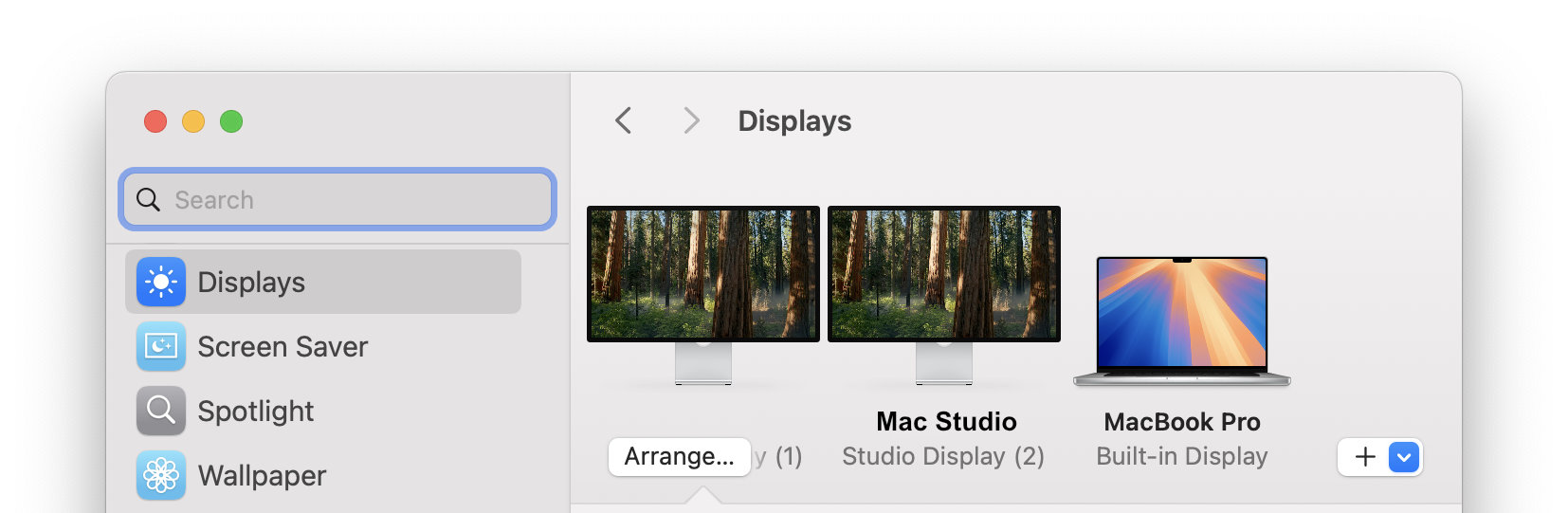
Once connected, you can easily drag and drop files, text, and images between your Mac devices using Universal Control. This feature streamlines your workflow and makes it easier to transfer content without the need for external drives or cloud services.
Use System settings to arrange your collection of Mac computers and never look back at having cable and display switchers again!
Whether you're editing documents, browsing the web, or working on creative projects, Universal Control enhances your productivity by allowing you to focus on your tasks without interruptions.
Experience the magic of Universal Control as you seamlessly navigate between your Mac devices with a single set of input devices, boosting your efficiency and performance.
Troubleshooting
If you encounter any issues with Universal Control, such as difficulty connecting devices or lagging performance, try restarting your devices and ensuring that they are within close proximity of each other. Additionally, check for software updates on both devices to ensure compatibility with Universal Control.
For further assistance, refer to Apple's support resources or community forums to troubleshoot any issues you may encounter while using Universal Control with your Mac devices.
By following these troubleshooting steps, you can resolve any connectivity or performance issues with Universal Control and continue to enjoy the seamless experience it provides.
In conclusion, Universal Control offers a revolutionary way to enhance your productivity by allowing you to use a single keyboard and mouse between two Mac devices. By following the steps outlined in this article, you can seamlessly connect, arrange, and work across multiple screens with ease. Take advantage of Universal Control to streamline your workflow and unlock the magic of productivity on your Mac devices.
Take the next step towards improved computer productivity with Universal Control and elevate your multitasking capabilities on your Mac devices.
