

Terminal prompt with architecture — macOS and Linux in 2026
In 2026, the terminal is more relevant than ever. Apple Silicon is now the default across the entire Mac lineup, ARM-based Linux machines are commonplace on the desktop and in the cloud, and Rosetta translation layers mean that knowing which architecture your shell is actually running under is genuinely useful information — not just a curiosity. At the same time, zsh has been the default shell on macOS since Catalina, and Ubuntu ships with it readily available, so a well-crafted zsh prompt is a practical investment that pays off every single day.
There are plenty of shell customisation frameworks around — Oh My Zsh, Starship, Powerlevel10k — but the most useful approach for software development and DevOps work is still a powerline-style prompt: structured, information-dense, and fast. The key constraint is that modifications must not hurt performance and must not be distracting. Every element in the prompt should earn its place by answering a question you actually need answered right now.
With Apple Silicon Macs routinely running both native arm64 processes and x86_64 processes under Rosetta 2, and with cloud and local ARM Linux machines now sitting alongside traditional x86_64 servers, the CPU architecture is exactly that kind of essential information. A quick glance at the prompt tells you whether you're building natively or under emulation — which matters the moment you start compiling, running containers, or installing packages.
The amber text colour is a deliberate nod to the real terminals I started on.

When you SSH into a different machine that shares the same zsh environment, the prompt immediately surfaces the username, hostname, CPU architecture, git branch, and OS symbol — so you always know where you are and what you're running on. The git branch only appears when you cd into a repository. The OS symbol turns green when the last command exited cleanly, red when it didn't. That's it. Useful, not noisy.
Contents
macOS (Apple Silicon and Rosetta)

The macOS prompt shows username, hostname, architecture, git branch, exit status, OS symbol, and shell prompt character. On macOS the OS symbol is the Apple logo. On an Apple Silicon Mac you'll typically see arm64 in the architecture segment, but if you've launched a Rosetta-translated shell — or you're inside a Homebrew x86_64 environment via arch -x86_64 zsh — the prompt will show x86_64 instead. That single segment has saved me from more than a few puzzling build failures.
Powerlevel10k remains a popular alternative for macOS users who want instant prompt rendering and a rich configuration wizard, but it adds complexity. For a minimal, auditable setup where you understand every line, a lean zsh-powerline fork is still the better choice.
Ubuntu Desktop 24.04 LTS
Ubuntu Desktop 24.04 LTS (Noble Numbat) is the current long-term support release as of 2026, and the prompt setup works identically here. The username, hostname, architecture, git branch, exit status, and OS symbol all appear just as they do on macOS. On Ubuntu the OS symbol is the Circle of Friends logo. ARM64 Ubuntu installs — increasingly common on devices like the Raspberry Pi 5 and various Qualcomm-based laptops — display arm64 in the architecture segment, making it immediately obvious you're not on a conventional x86_64 desktop.
If you're running Ubuntu inside WSL2 on a Windows ARM machine, the architecture segment is equally valuable: WSL2 on ARM hardware can present either arm64 or x86_64 depending on how the instance was configured, and the prompt makes that unambiguous.
zsh-powerline with architecture
I forked zsh-powerline to add my changes and keep them in GitHub for easy redeployment across machines. The fork lives in the multizone branch: https://github.com/multizone-uk/zsh-powerline/tree/multizone
The changes are minimal by design. I added a colour segment for the architecture display, injected the CPU architecture — pulled from uname -m — into the prompt configuration, and adjusted the overall segment order to suit the way I actually work. Full details are in the README. Because the architecture is resolved once at prompt render time using a simple shell substitution, there's no measurable performance cost.
For anyone starting fresh in 2026, Starship is worth a look as a cross-shell alternative — it's written in Rust, renders quickly, and has built-in support for showing system information including architecture. That said, it requires an external binary and a Nerd Font, which adds friction on fresh servers. The zsh-powerline approach described here needs nothing beyond zsh itself and a handful of Unicode characters your terminal almost certainly already supports.
Terminal settings (macOS)
macOS Terminal settings rarely need touching, but when I last revisited them I settled on a few preferences worth sharing. I use 132×50 columns and rows — 132 columns is a nod to the old greenbar listing paper that was standard on line printers, and 50 rows makes good use of a modern display without feeling overwhelming. Font size has crept up over the years; larger text is simply easier to read for long sessions, and on a high-DPI Retina display there's no reason to squint.
The amber-on-black colour scheme is a deliberate choice. It evokes the VT220-style terminals I first used at Sun Microsystems in the 1980s, and in practice it's easy on the eyes during long sessions in a way that high-contrast white-on-black isn't always.


Text colours

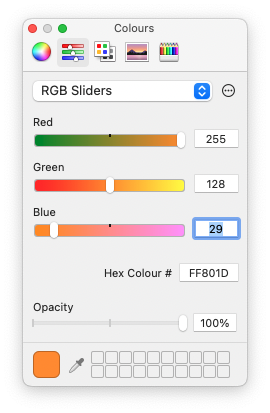
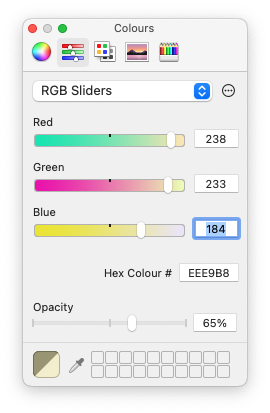
If you use iTerm2 or the newer Ghostty terminal — which has gained significant traction since its public release and handles true colour and ligatures particularly well — the same colour values translate directly. Ghostty's configuration file makes it straightforward to replicate the amber palette without going through a GUI.
Terminal settings (Ubuntu Desktop 24.04 LTS)


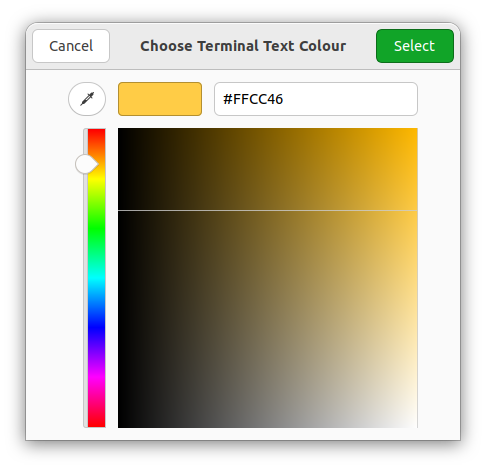
GNOME Terminal on Ubuntu 24.04 behaves the same way as on 22.04 for the purposes of this setup. If you've switched to the new GNOME Console application that ships by default in some Ubuntu flavours, note that its profile management is more limited — sticking with GNOME Terminal or installing Ghostty gives you the full colour control shown above.
