Boot Camp is gone. Apple silicon Macs — from the M1 through to the latest M4 chips — have no native Windows support, and that's not changing. What has changed is that virtualisation on Apple silicon has matured enormously, and in 2026 running Windows 11 Arm in a virtual machine on your Mac is genuinely fast, stable, and practical for real work. This guide walks you through doing exactly that with VMware Fusion.
TL:DR – Windows 11 (Arm) runs exceptionally well under VMware Fusion on Apple silicon. Setup is straightforward thanks to the built-in "Get Windows" feature, but you'll need a valid licence to activate it.
Contents
Why a VM instead of Boot Camp?
Boot Camp allowed Intel Mac users to run Windows at full native speed by partitioning the drive and booting directly into it. Apple silicon changed the architecture entirely, and Boot Camp was never brought across. For Apple M1, M2, M3, and M4 machines, a virtual machine is now the only supported path to running Windows locally — and honestly, given how fast these chips are, the performance trade-off is negligible for most workloads.
Microsoft officially supports running Windows 11 Arm in virtual machines on Apple hardware, and the licensing model has been clarified: Windows 11 Pro requires a separate licence for each VM instance, but product keys are platform-agnostic, meaning a standard Windows 11 Pro key works whether you're activating an x64 or Arm installation. If you need Windows 11 Enterprise, you'll first need a Pro licence and then upgrade through volume licensing.
Step by step through the installation

Installing Windows 11 as a virtual machine in VMware Fusion on an Apple silicon Mac is now considerably less painful than it used to be. Microsoft has committed to fully supporting Windows on Arm in virtual machines on Apple hardware, and VMware has done the work on its end to make the process feel polished. You will need a valid licence to activate Windows once it's installed.
It runs beautifully and holds up well for testing, development, and running Windows-only tools alongside your Mac workflow.
One lingering criticism is the setup experience itself: the installation still lurches between legacy-looking screens that would not have looked out of place in Windows Vista and the clean, modern Windows 11 interface. It's a jarring inconsistency that Microsoft hasn't resolved, and it would rightly confuse anyone coming to Windows fresh.
The "Get Windows" feature
The single biggest quality-of-life improvement in recent versions of VMware Fusion is the "Get Windows" feature. Rather than hunting down the correct Arm ISO — which used to be the most frustrating part of this whole process — you simply open the new virtual machine wizard, select Get Windows, choose Windows 11, pick your edition and language, and Fusion downloads the latest Windows 11 Arm image directly from Microsoft.
The downloaded image is reusable across future VM builds, so you only pay the bandwidth cost once. Fusion also pre-configures the VM with the correct drivers for networking and graphics, which previously required manual intervention. It's a genuinely well-implemented feature that removes most of the friction from what was once a fiddly process.

Installing Windows 11 on a Mac Studio in VMware Fusion
This is a slide show of all the screens captured during installation.

Belkin USB-C Multimedia Hub with Gigabit Ethernet and HDMI
I needed the Swiss army knife of USB-C connectors to get my Internet connection going to complete the installation. Once completed and after running Windows update I no longer needed this and it may not be needed at all anymore.

Standard Windows Setup
This screen hasn't changed for years and looks outdated.
Review and Press 'Next'.
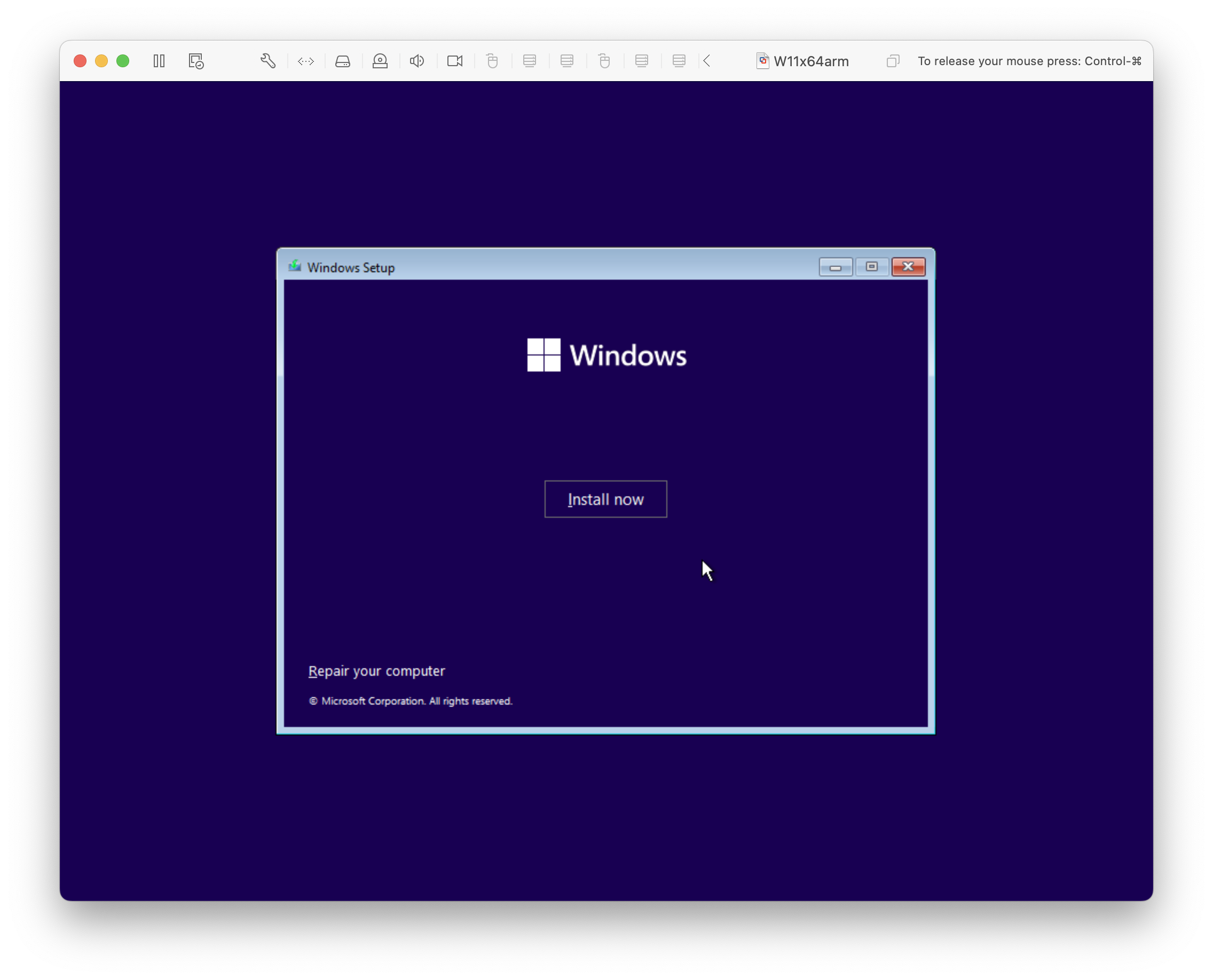
More old school Windows Setup?
Press 'Install now'

Darker, starting Windows Setup
Theres a black background with text saying 'Setup is starting' and a new old style hour glass.

Another, newer Windows Setup
Its a third distinctive user experience with a different theme.
Perhaps it knows a bit more about my display settings
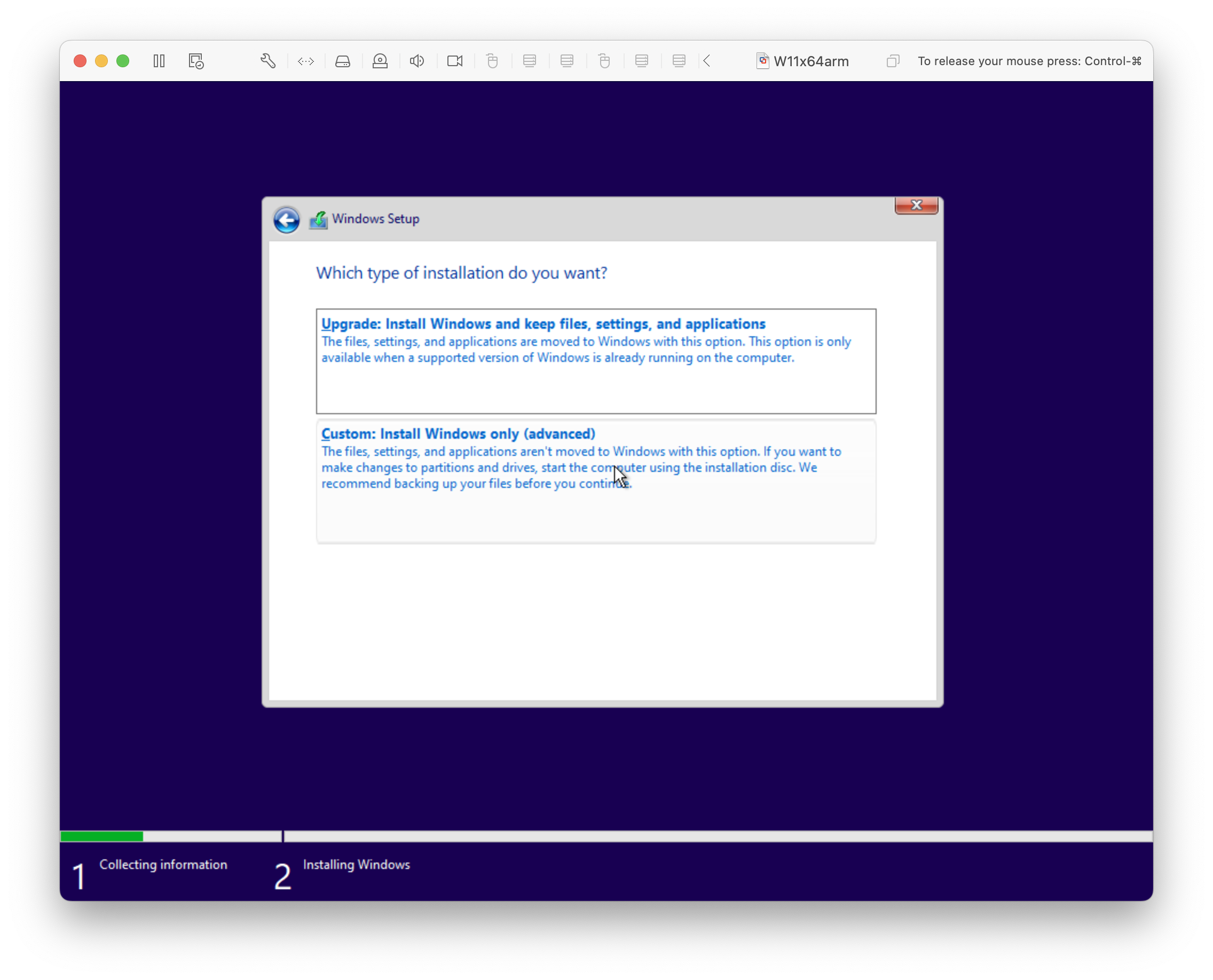
New Windows Setup
Choose 'Custom: Install Windows only (advanced)'.
Read the note. This is a new install so the best choice.
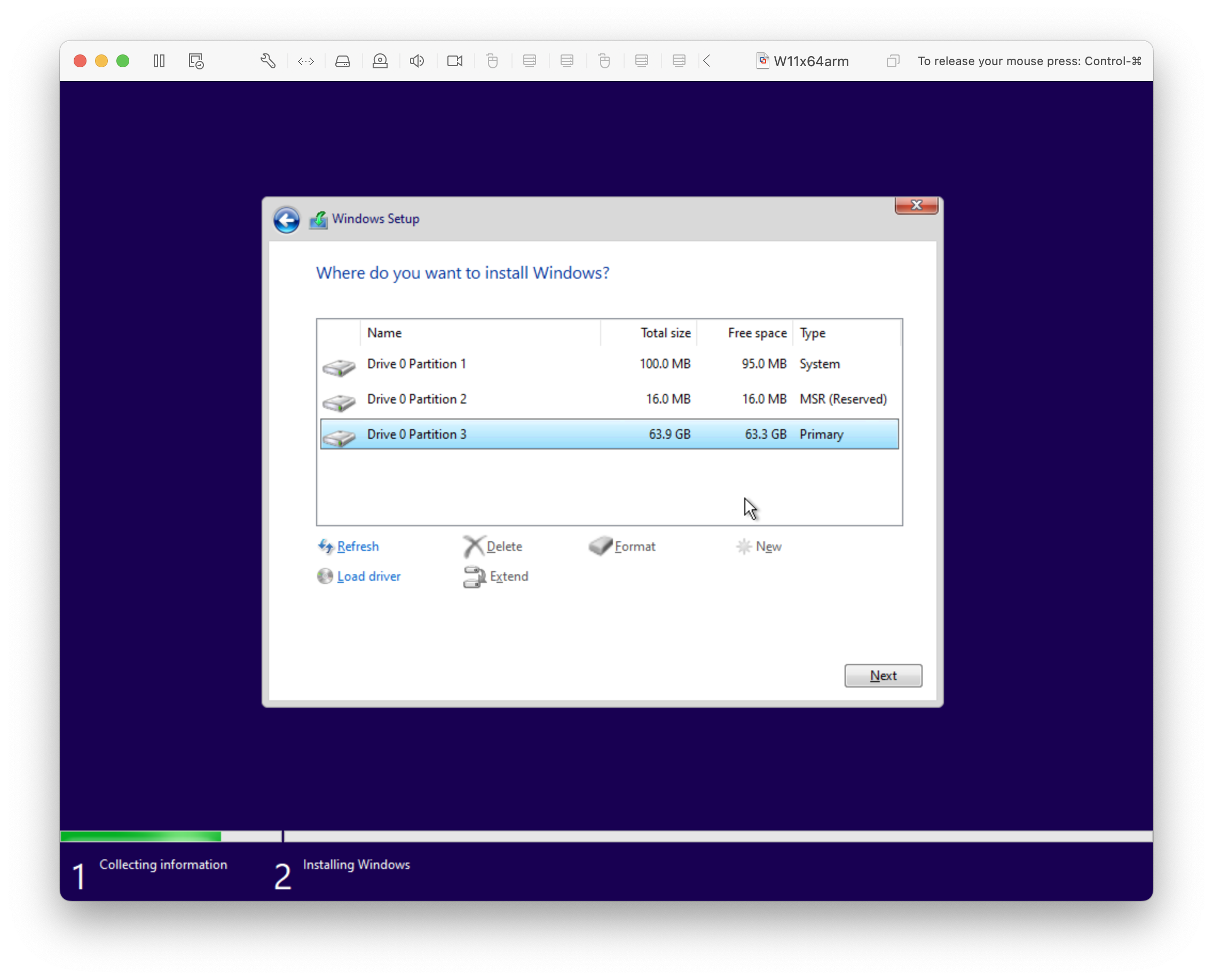
Create a drive for Windows using VMware first
Choose the Primary partition you created and click Next.
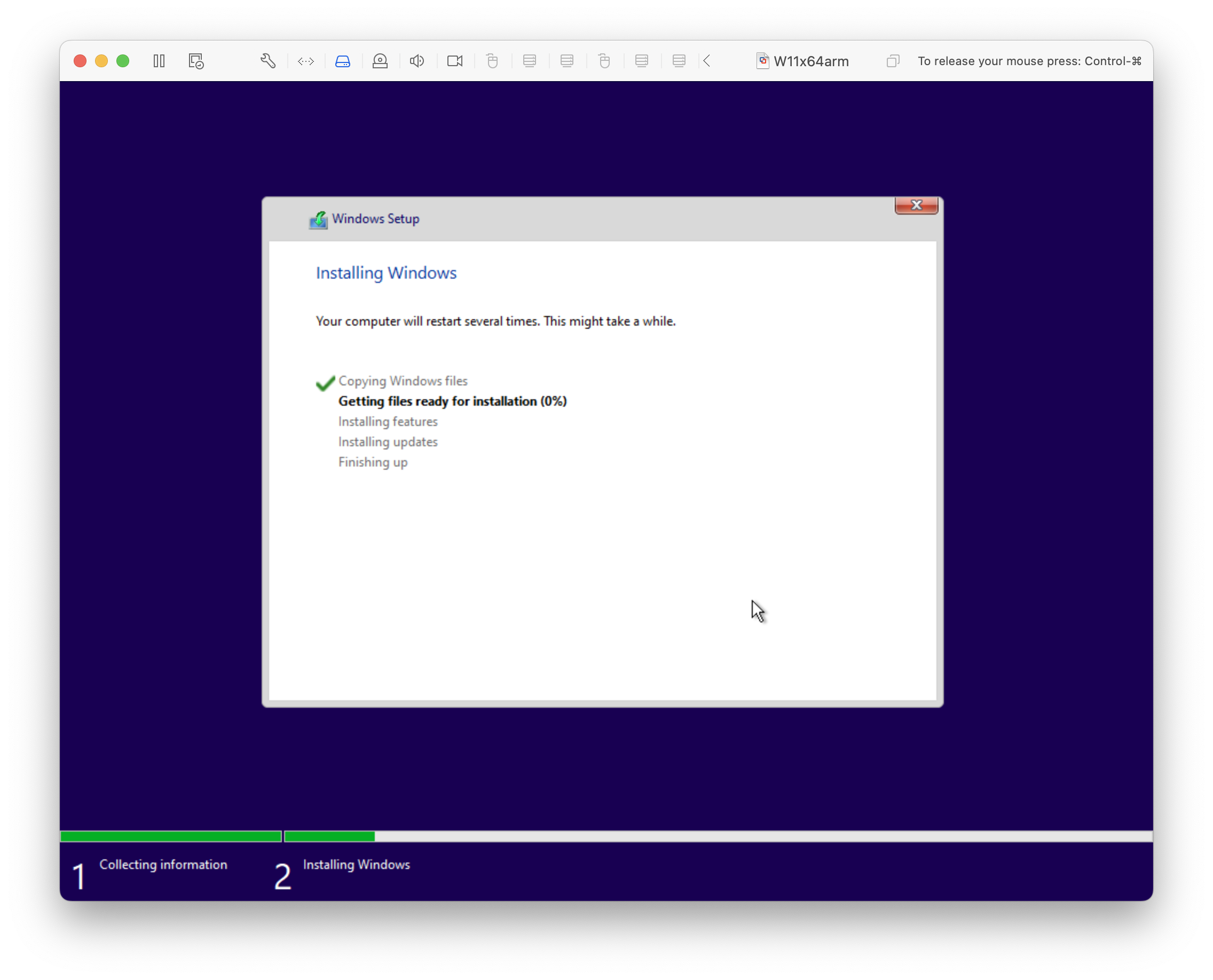
This might take a while
Wait for this to complete.
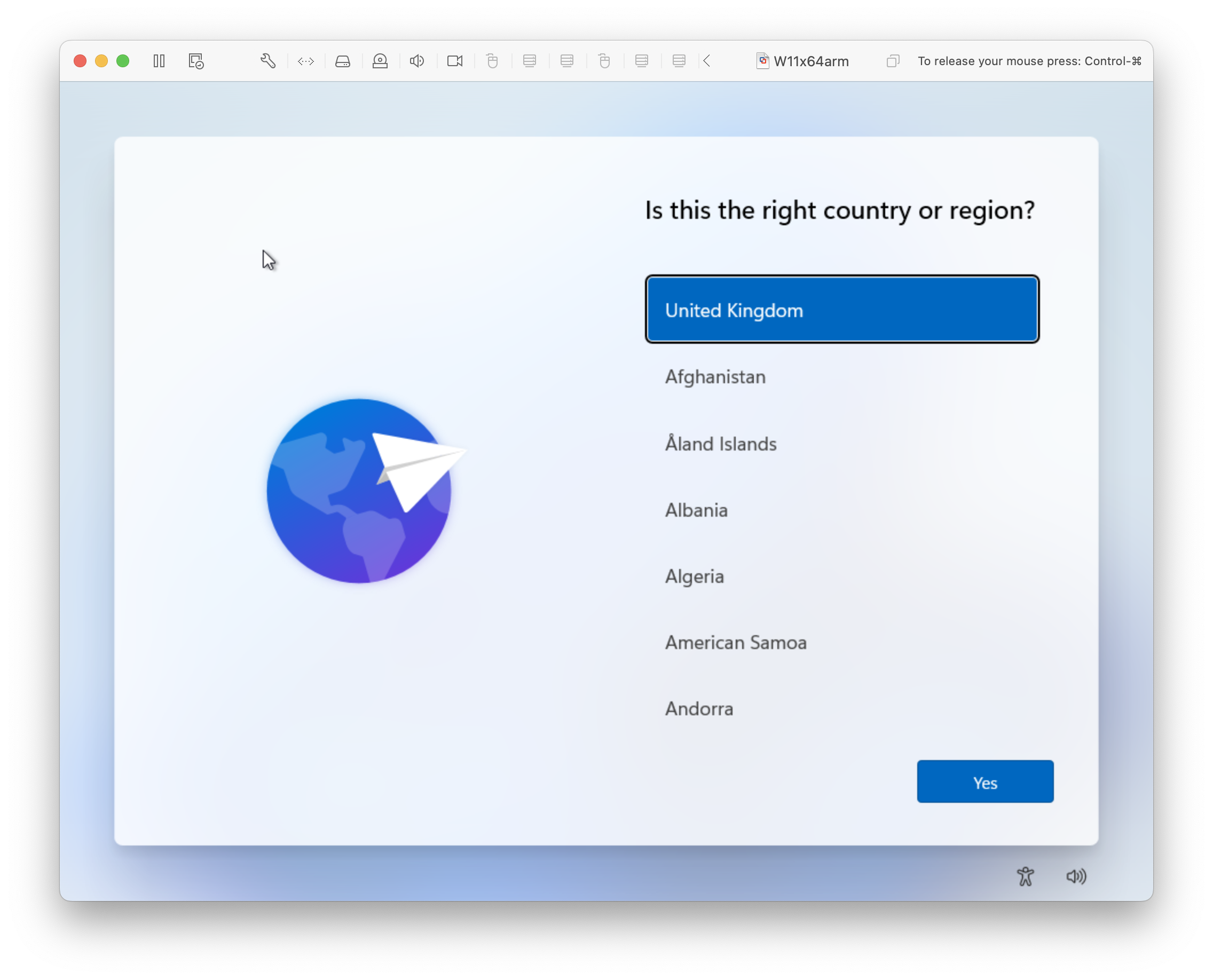
United Kingdom
It was pre-selected, click Yes.
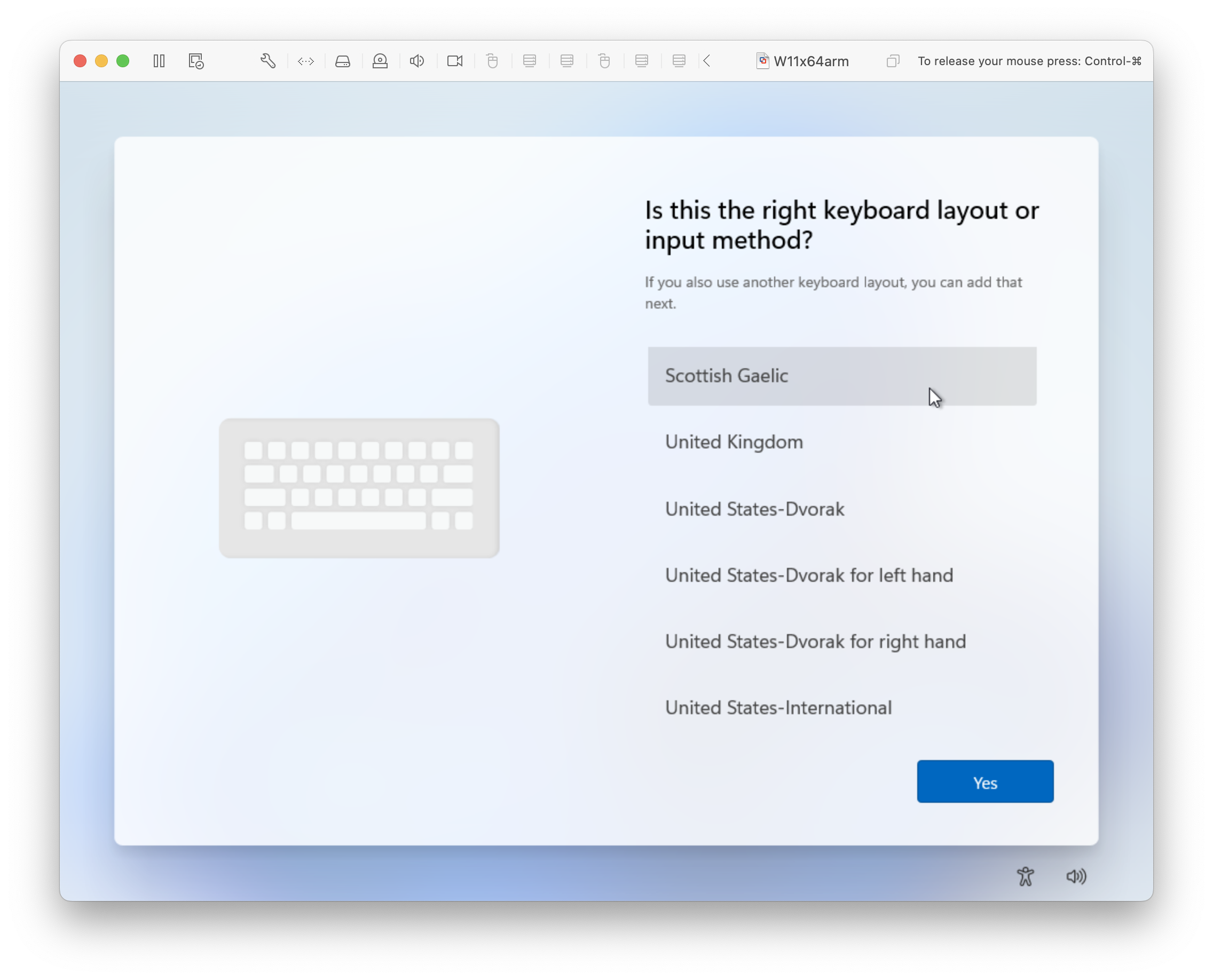
Scottish Gaelic
It was pre-selected, I selected United Kingdom and clicked Yes.
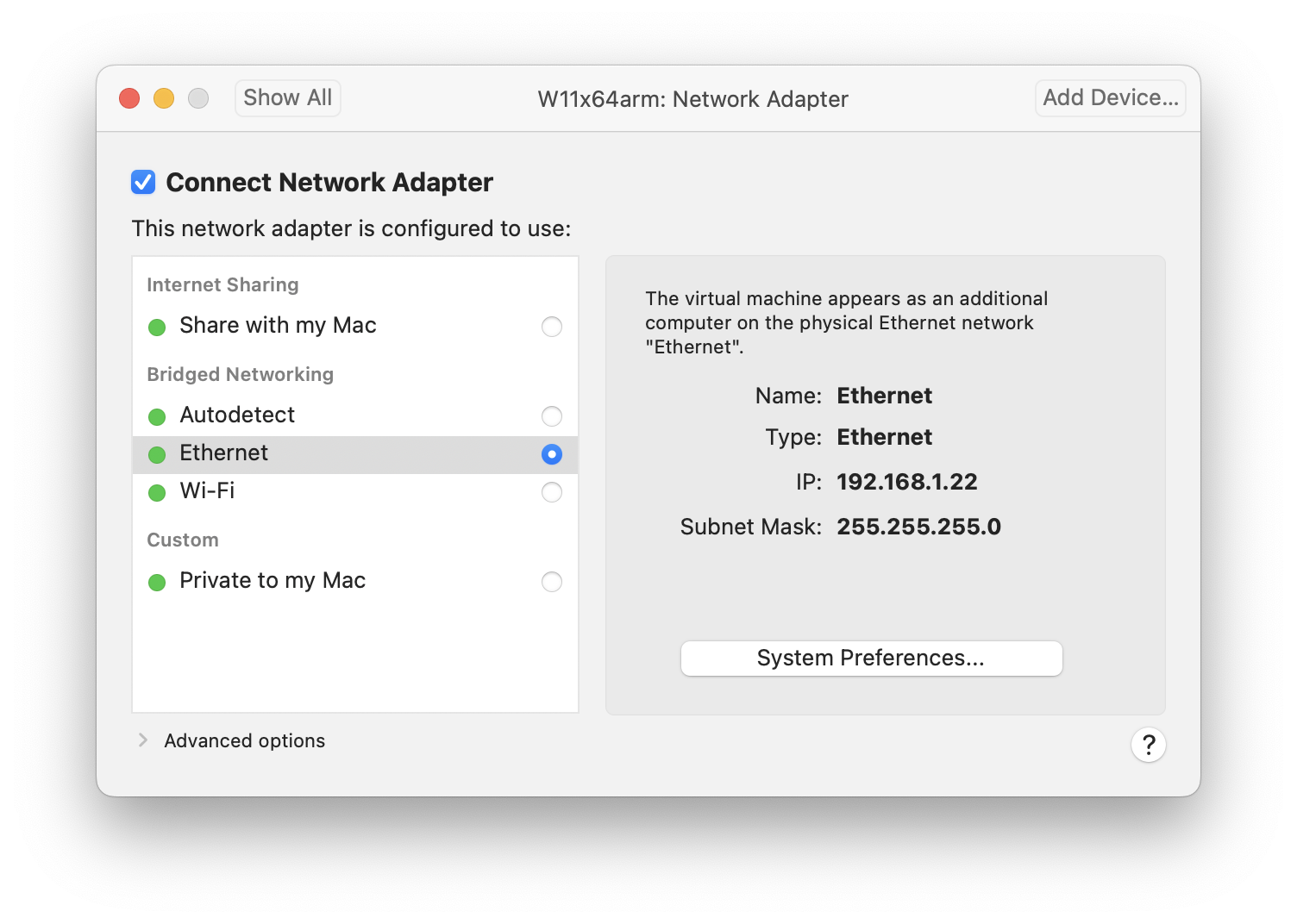
VMware Ethernet Settings
I selected Ethernet.

Network
My network is connected.
This is why I needed an external Etherhet adapter.

Checking for updates
Yet another UI.

Let's name your device
I chose vm-win11-arm so I know what this is from the name.
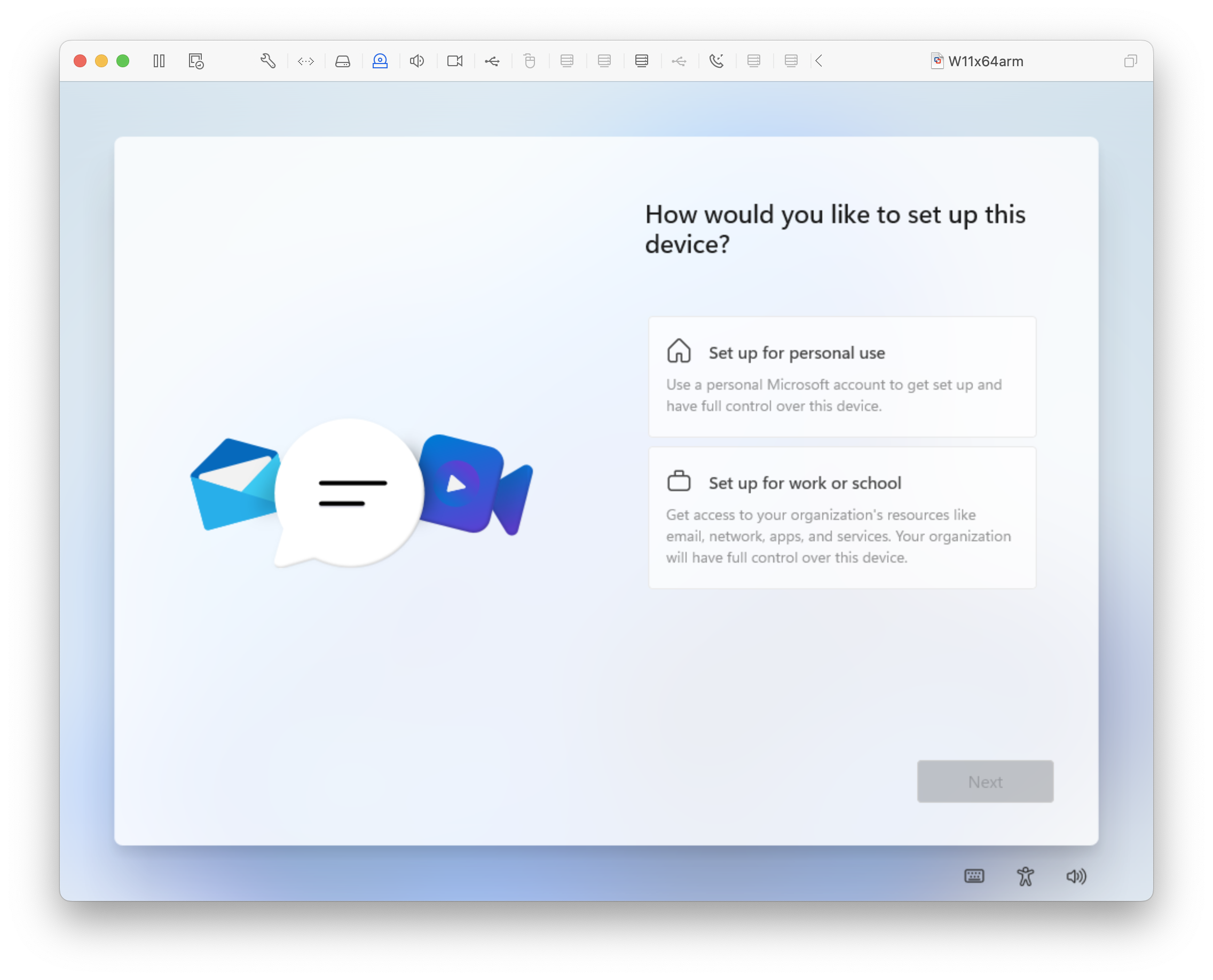
How would you like to set up this device
An interesting question!
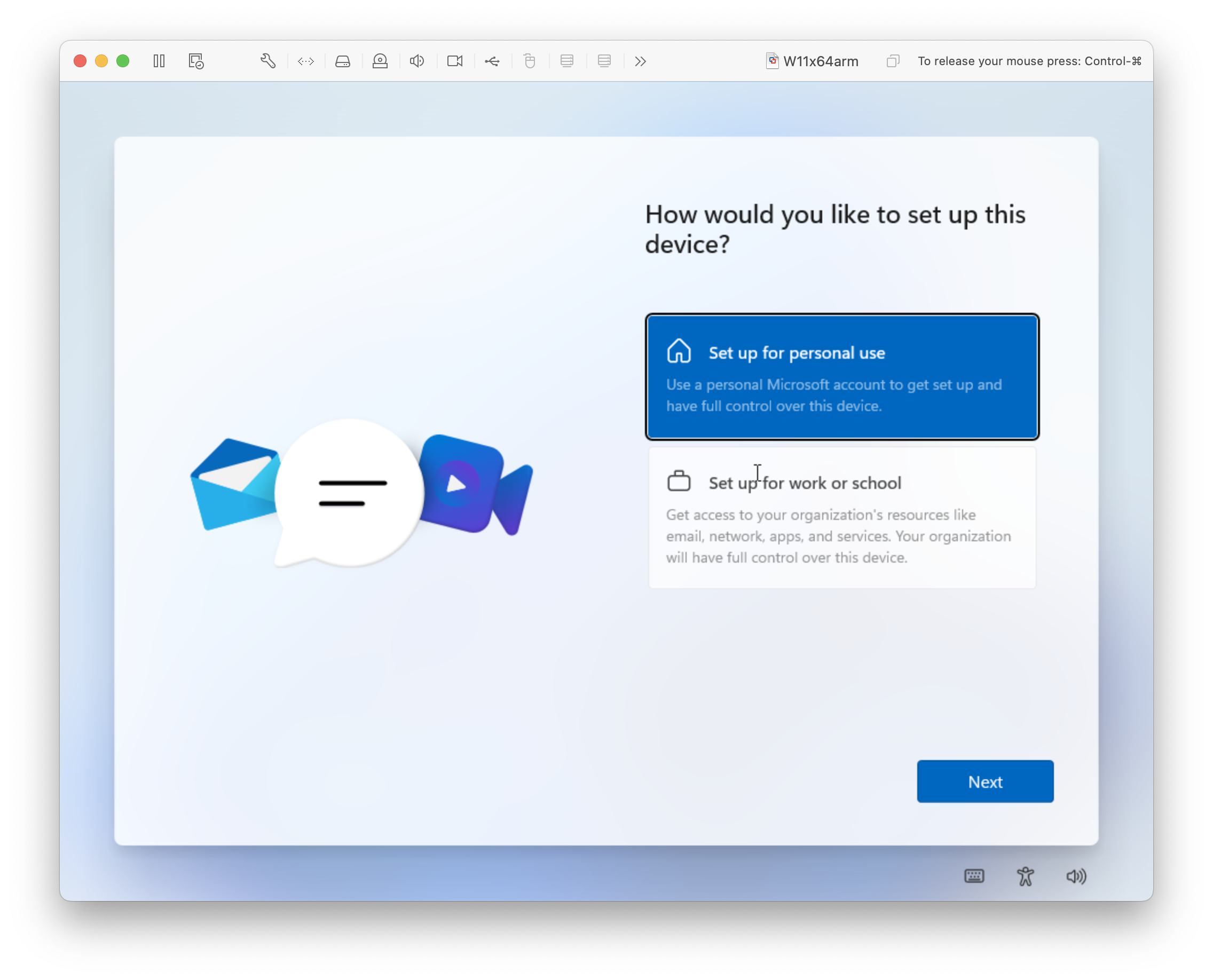
How would you like to set up this device
I chose 'Set up for personal use'
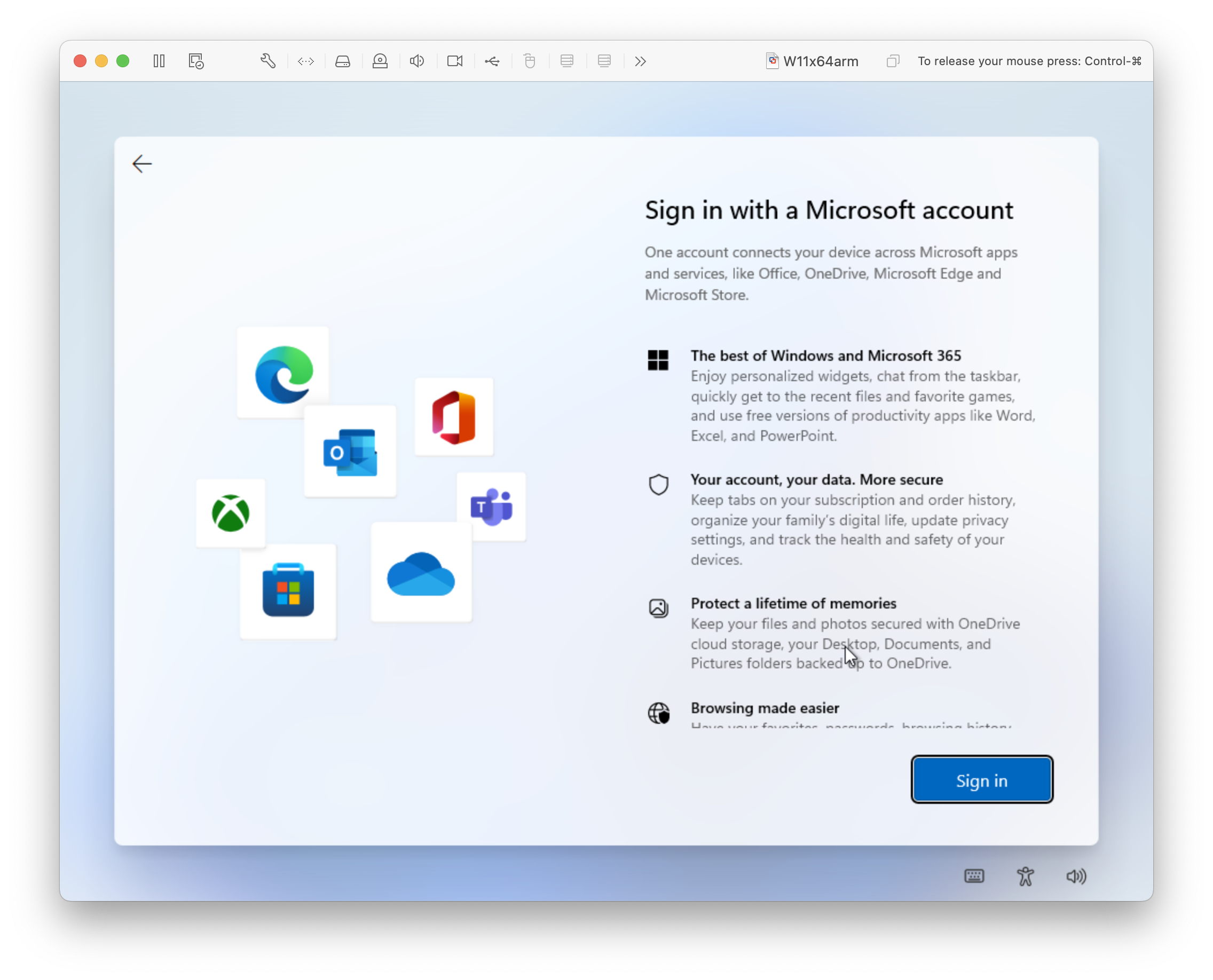
Sign in with a Microsoft account
I don't really object to this on other platforms,
but Windows has never asked for this before.
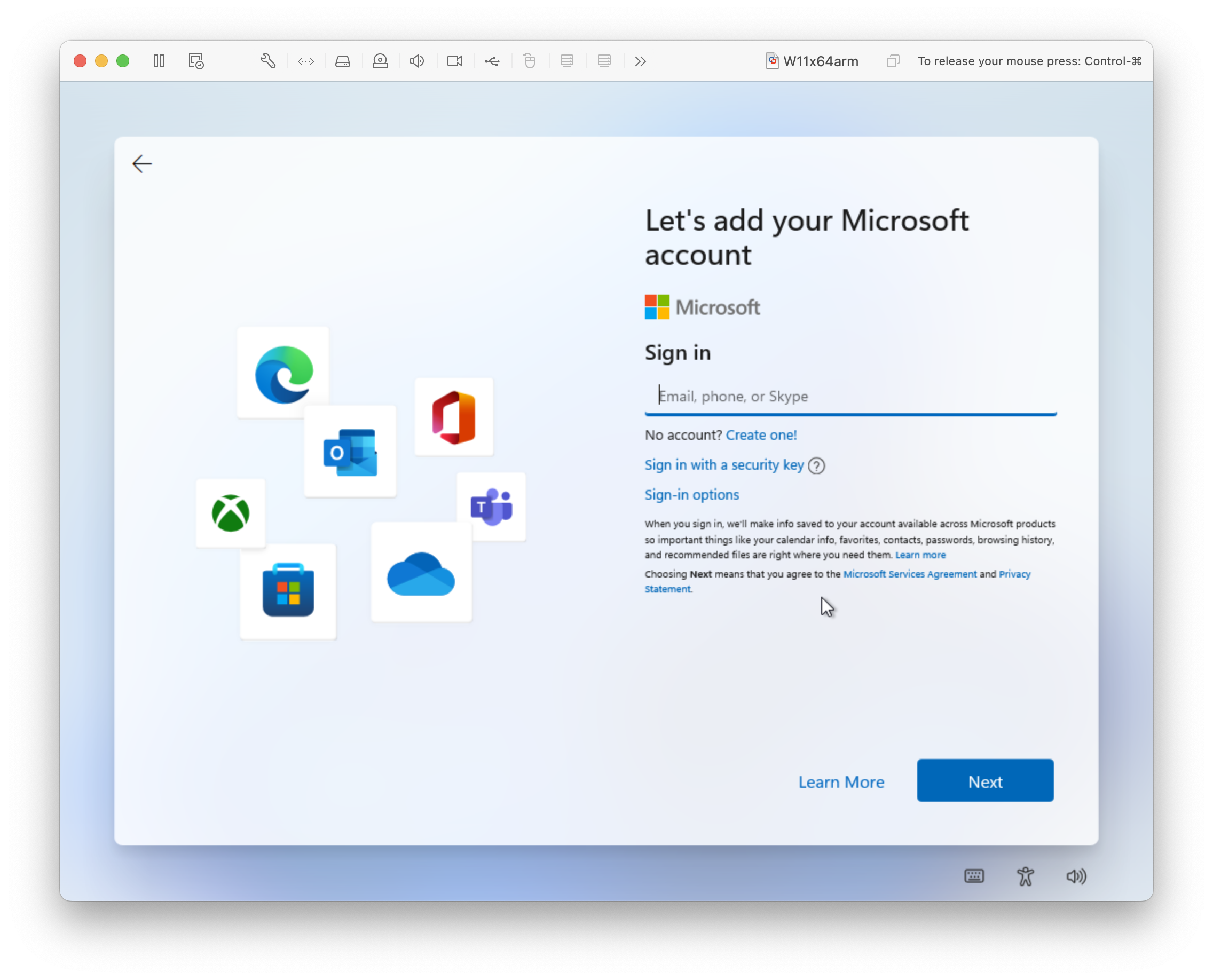
Let's add your Microsoft account
Sign in, I'll use my msn account I've had since msn began.

Set up a PIN
Not just any old PIN, a Windows Hello PIN.
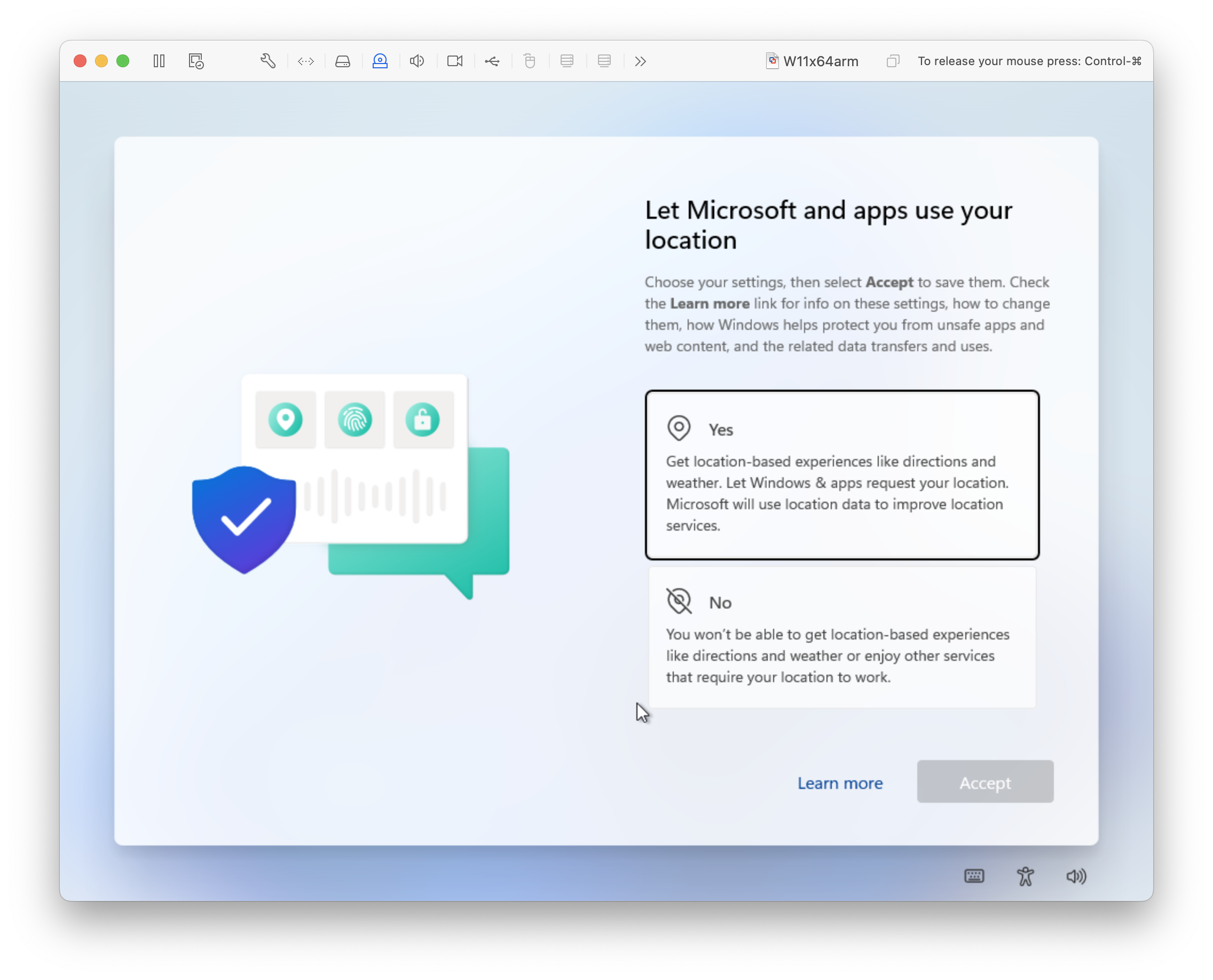
Let Microsoft and apps use your location
Location-based experiences require this, lets try it.

Find my device
Not going to be easy to lose a VMware virtual machine but anyway.
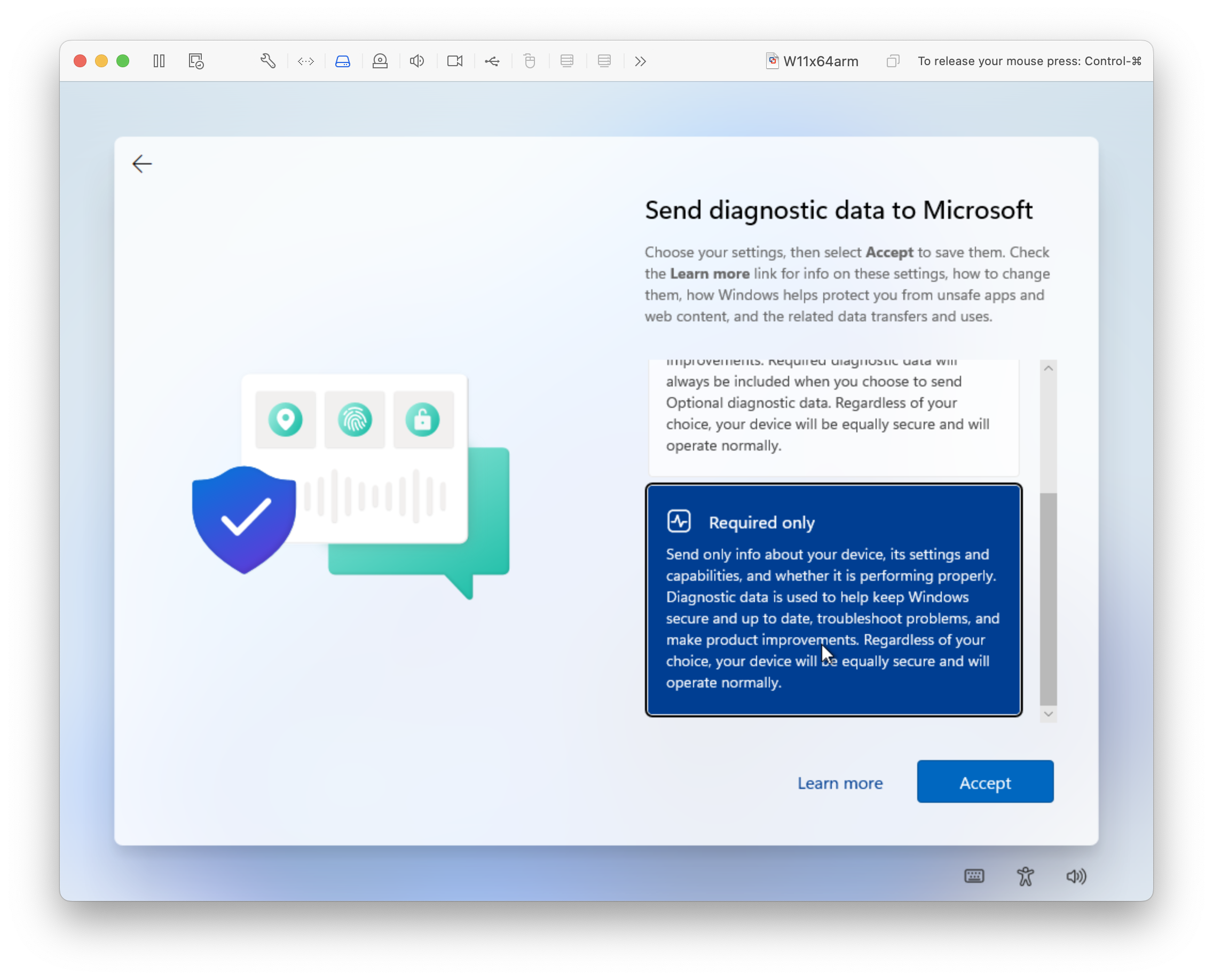
Send diagnostic data to Microsoft
Required only.

Improve inking & typing
No.

Get tailored experiences with diagnostic data
Ugh. No.
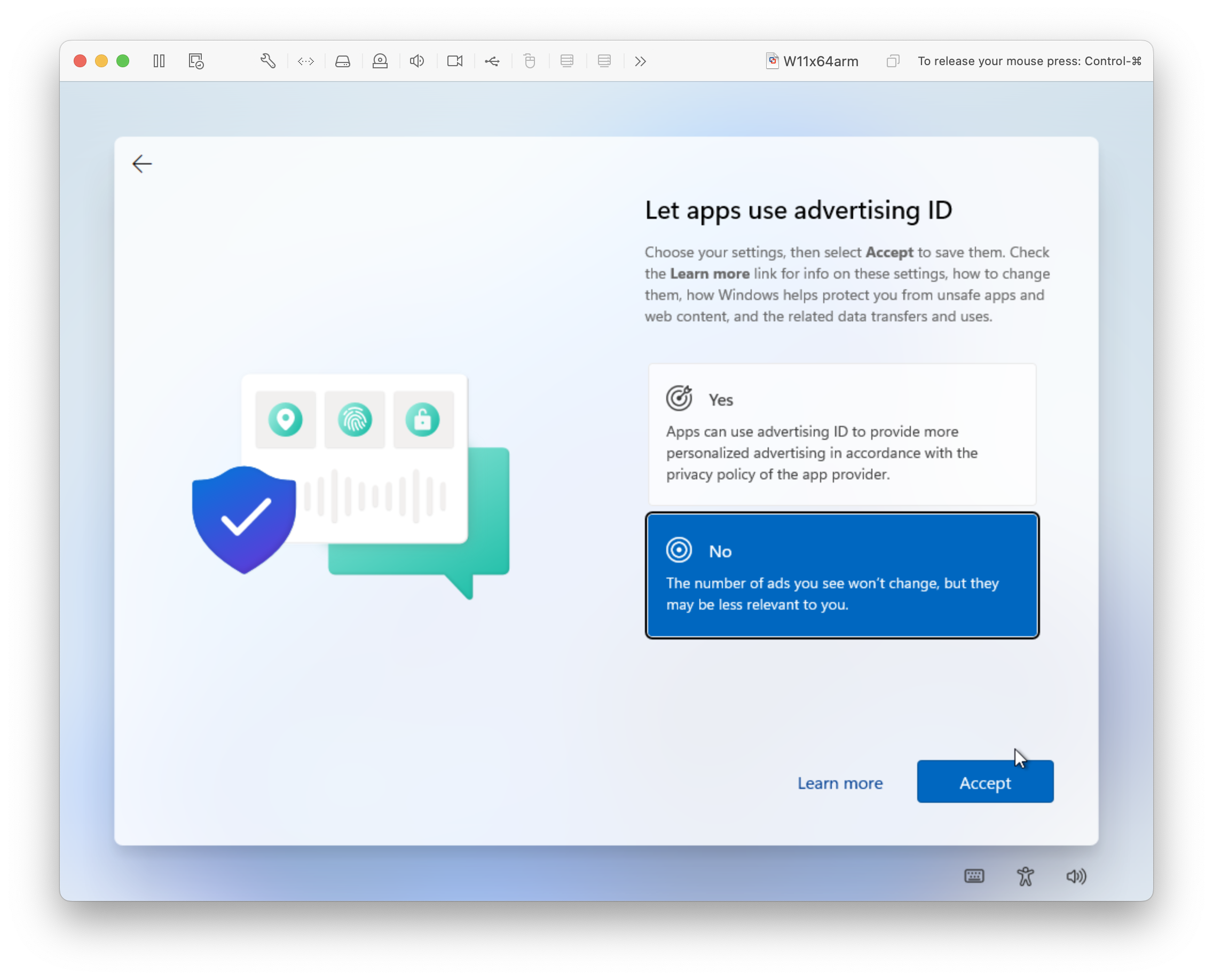
Let apps use advertising ID
No.
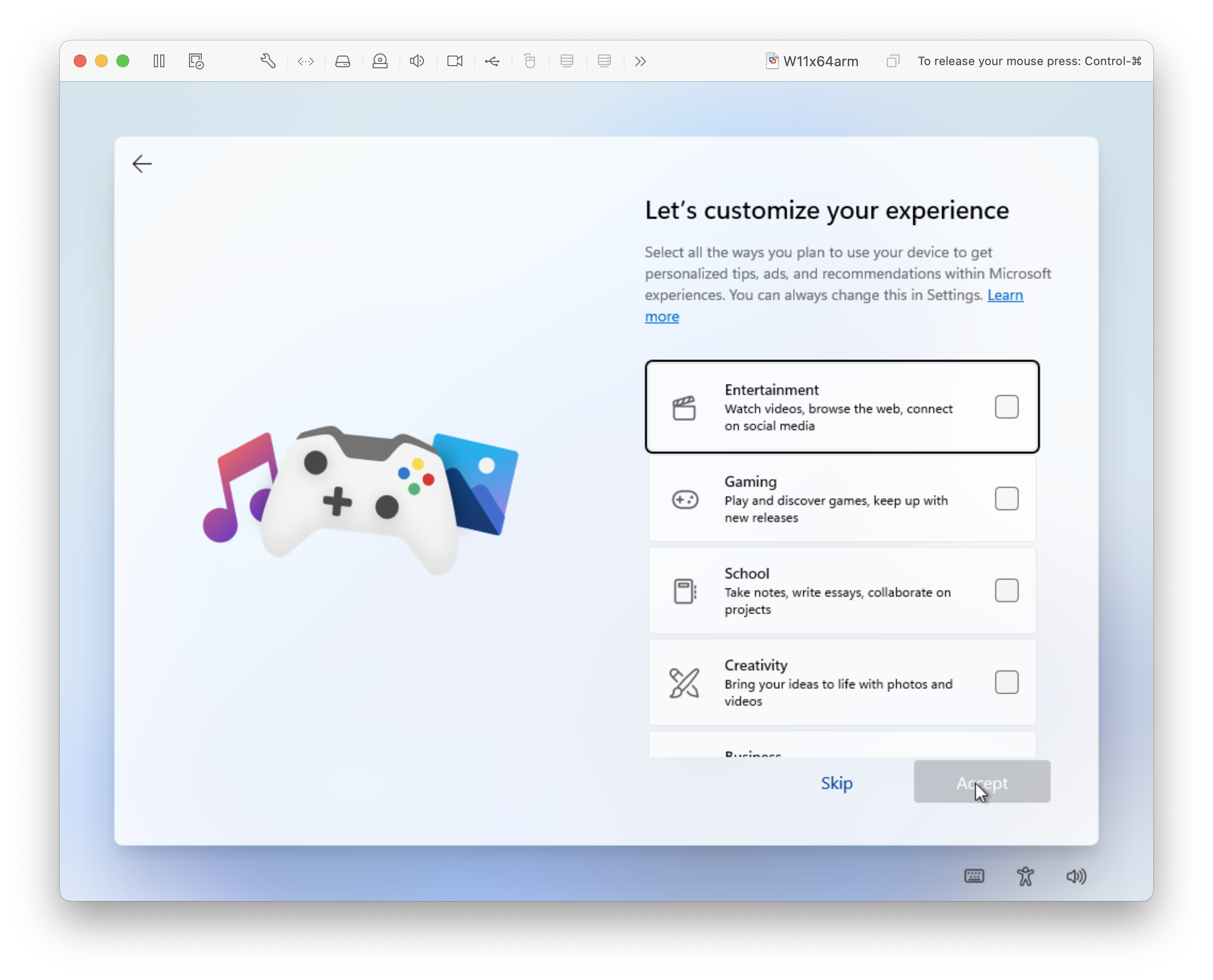
Let's customise your experience
Unselected all.

Use your Android phone from your PC
Scan the QR Code (omitted).

Confirm it's your phone
Enter the verification code from your phone.
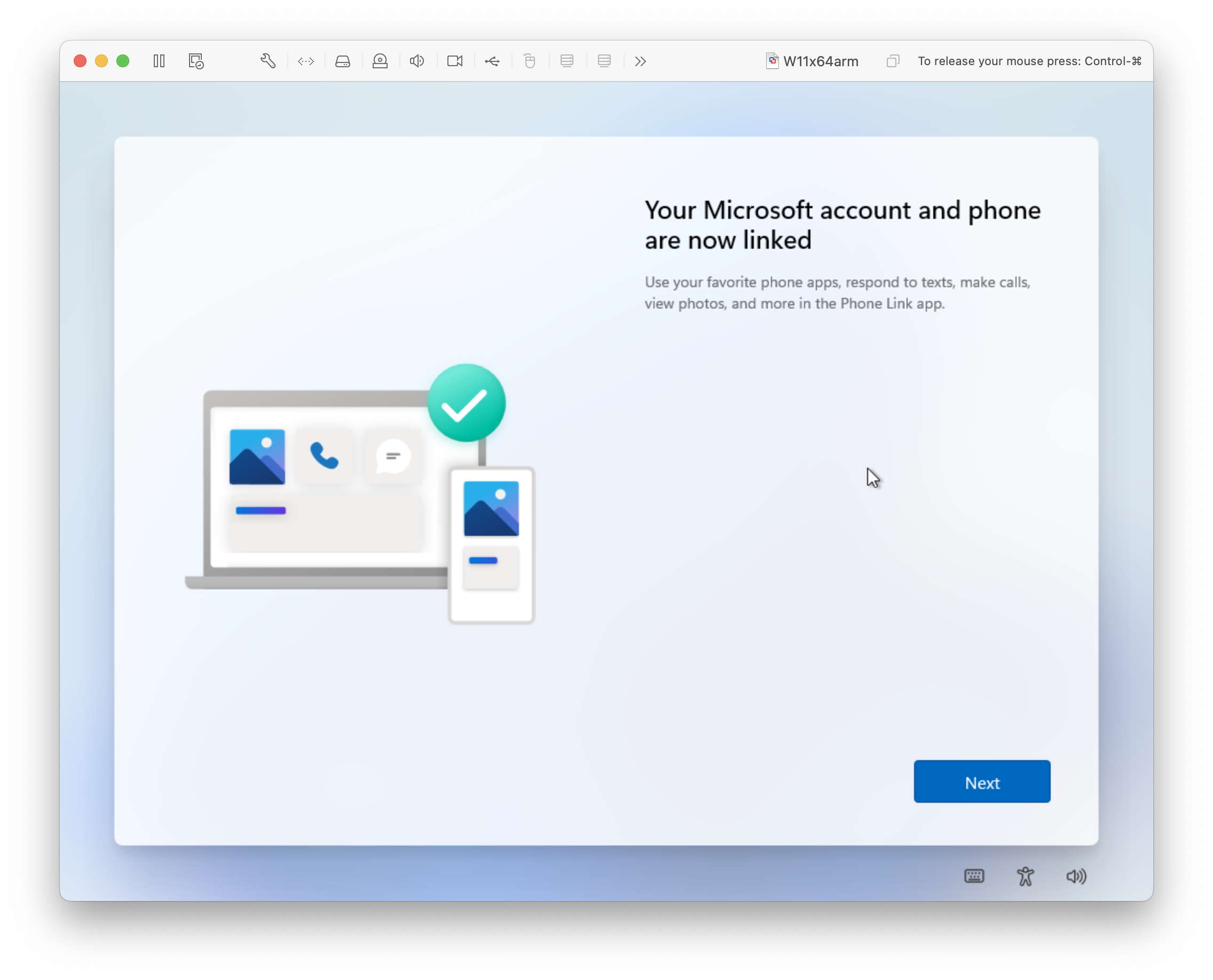
Your Microsoft account and phone are now linked
Press 'Next'.

Back up your files with OneDrive
Press 'Next'.
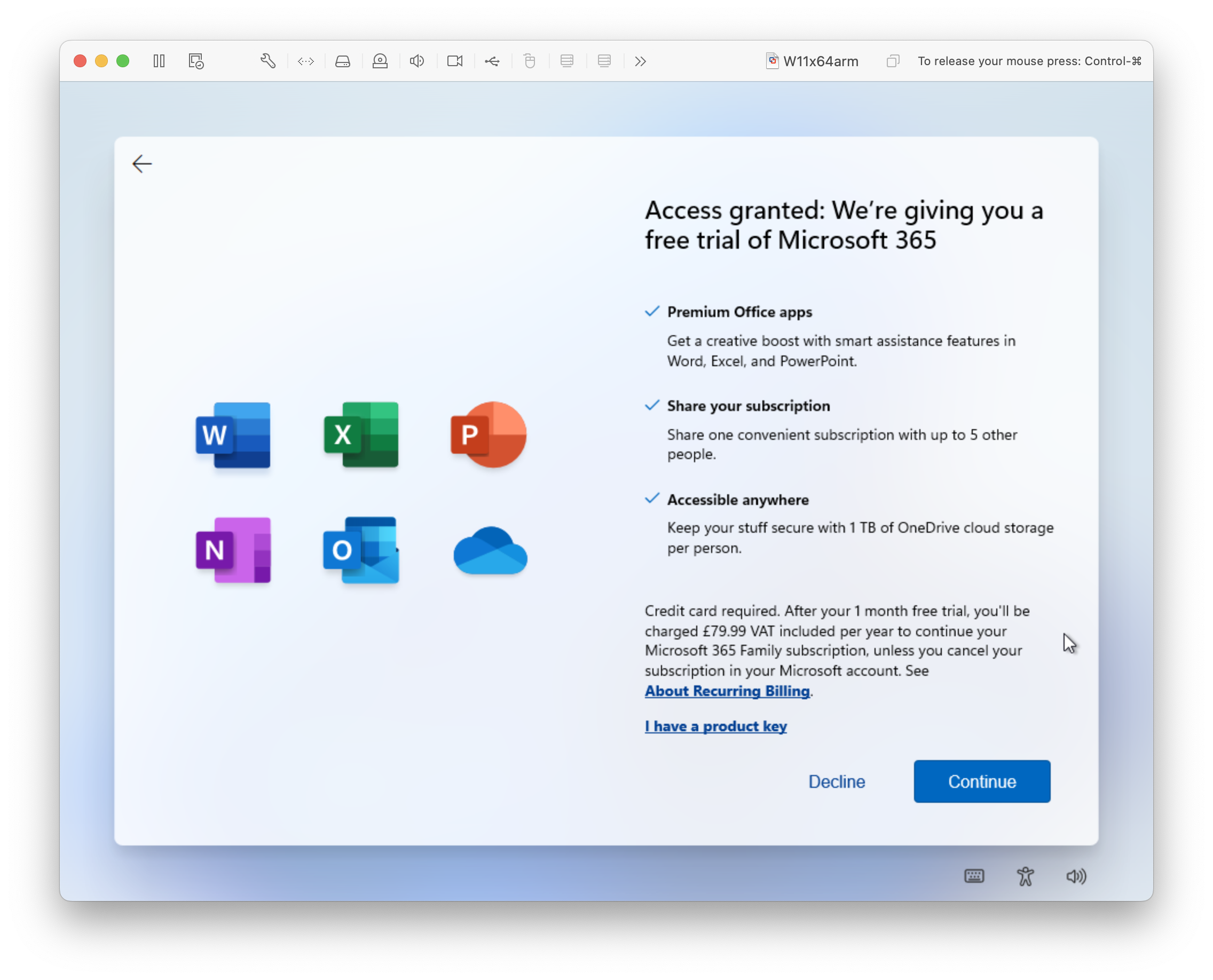
Free trial of Microsoft 365
Press 'Decline'.
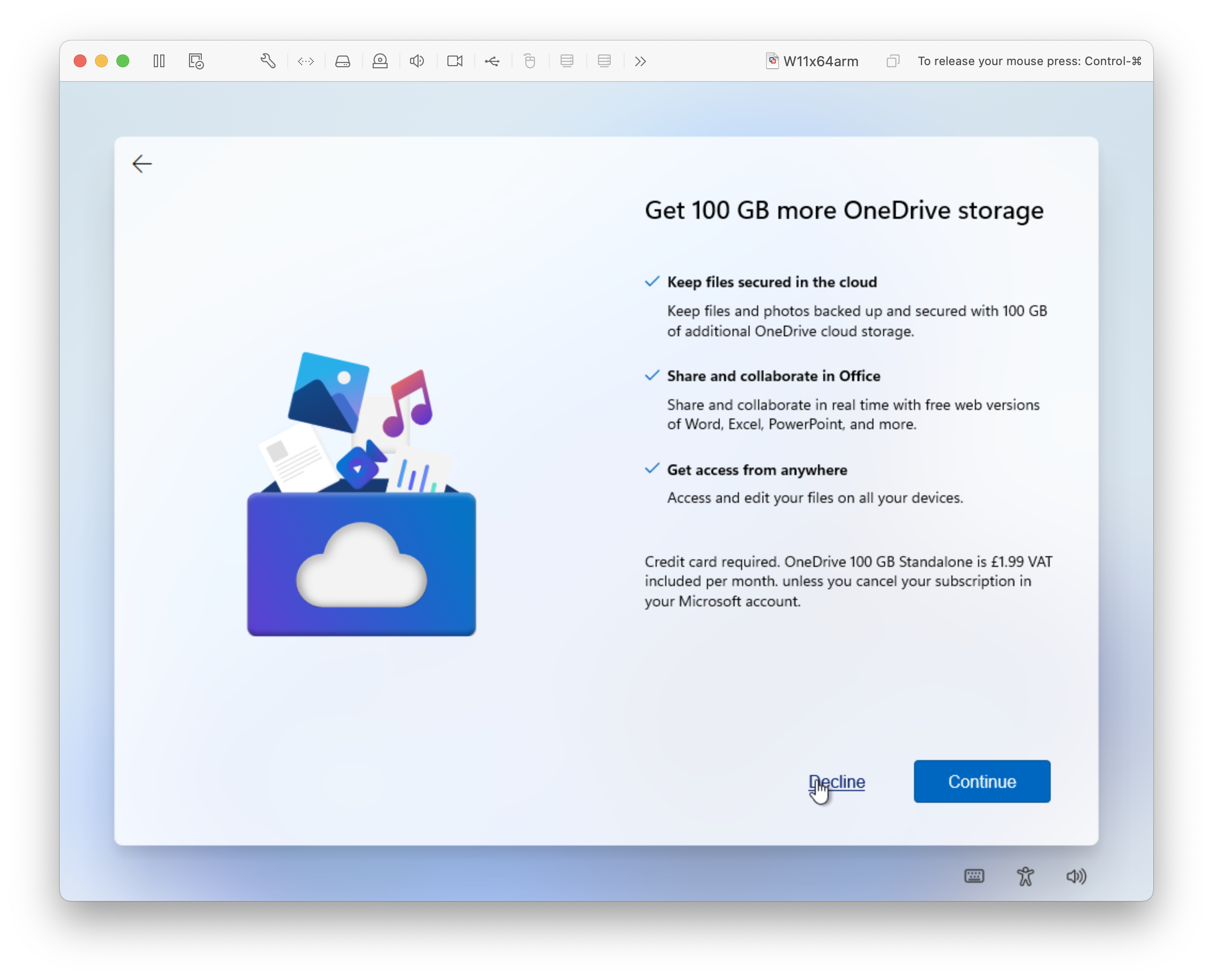
Get 100 GB more OneDrive storage
Press 'Decline'.

Hi
Getting things ready for you
This might take a few minutes

Almost there

Windows 11

Windows 11

Windows 11 System
VMware20,1

About Windows 11 System
Processor is from Apple, 64-bit, ARM-based.
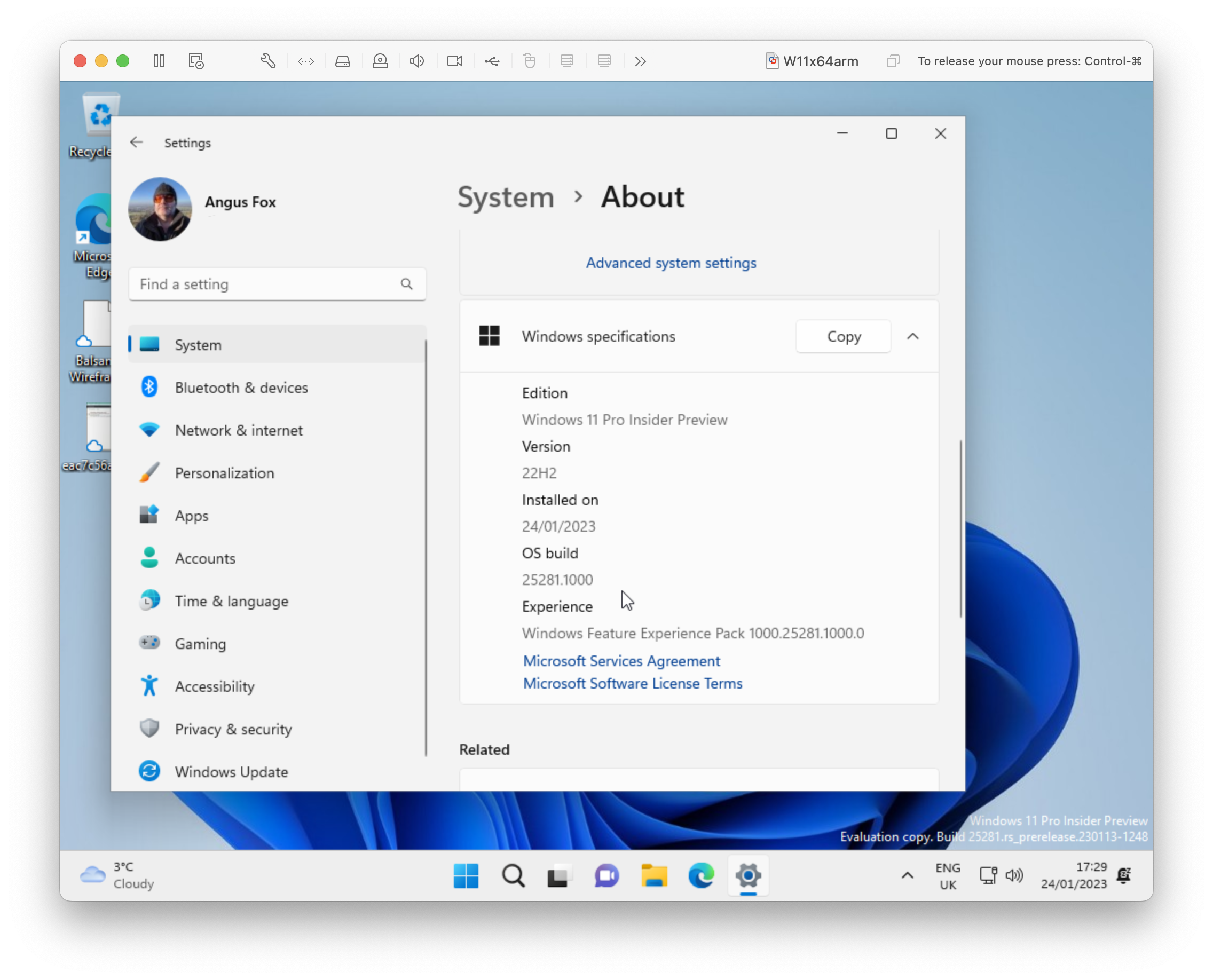
About Windows 11 System
Processor is from Apple, 64-bit, ARM-based.

Welcome to Edge
You're almost set up!
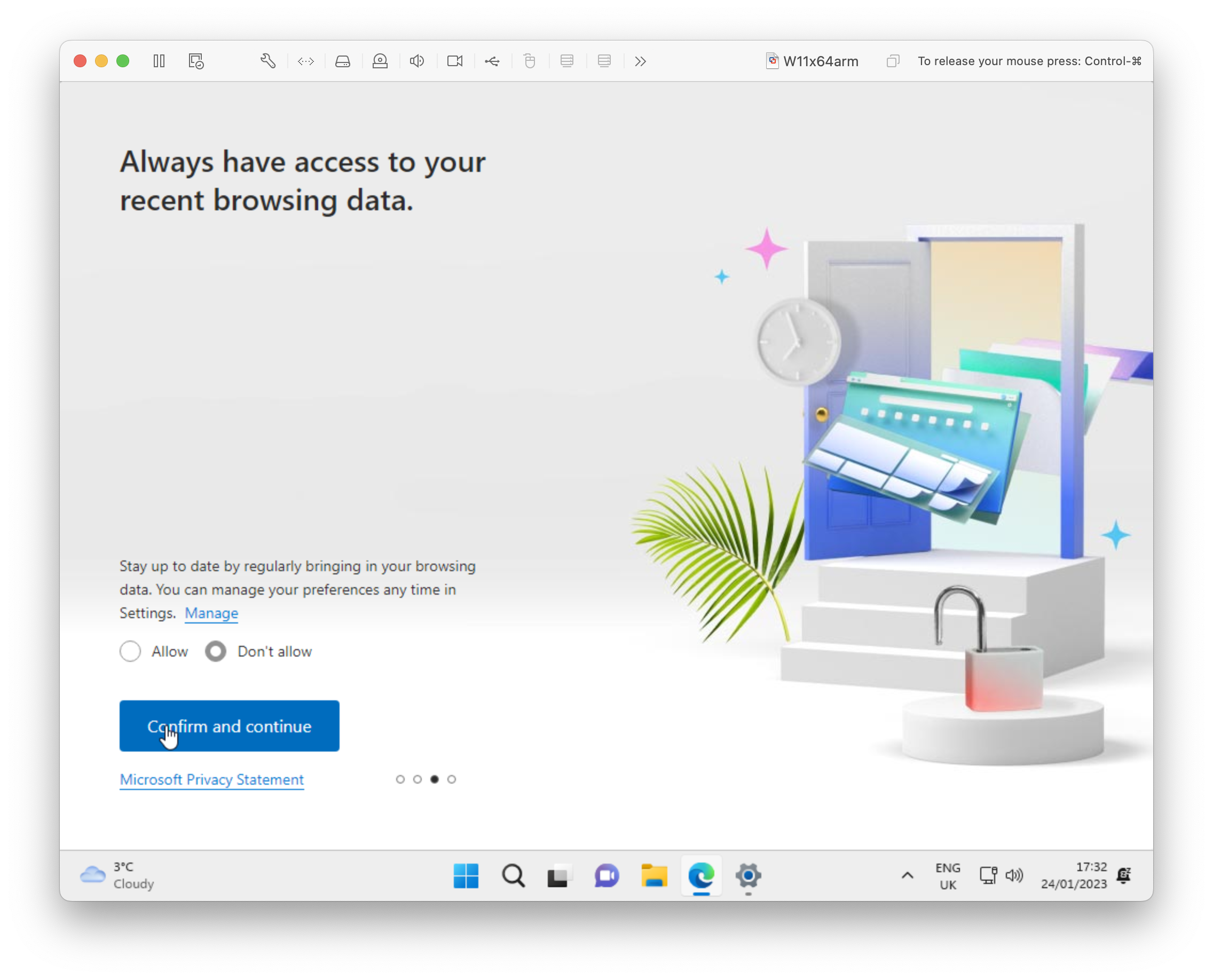
Always have access to your recent browsing data
Selected 'Don't allow'!
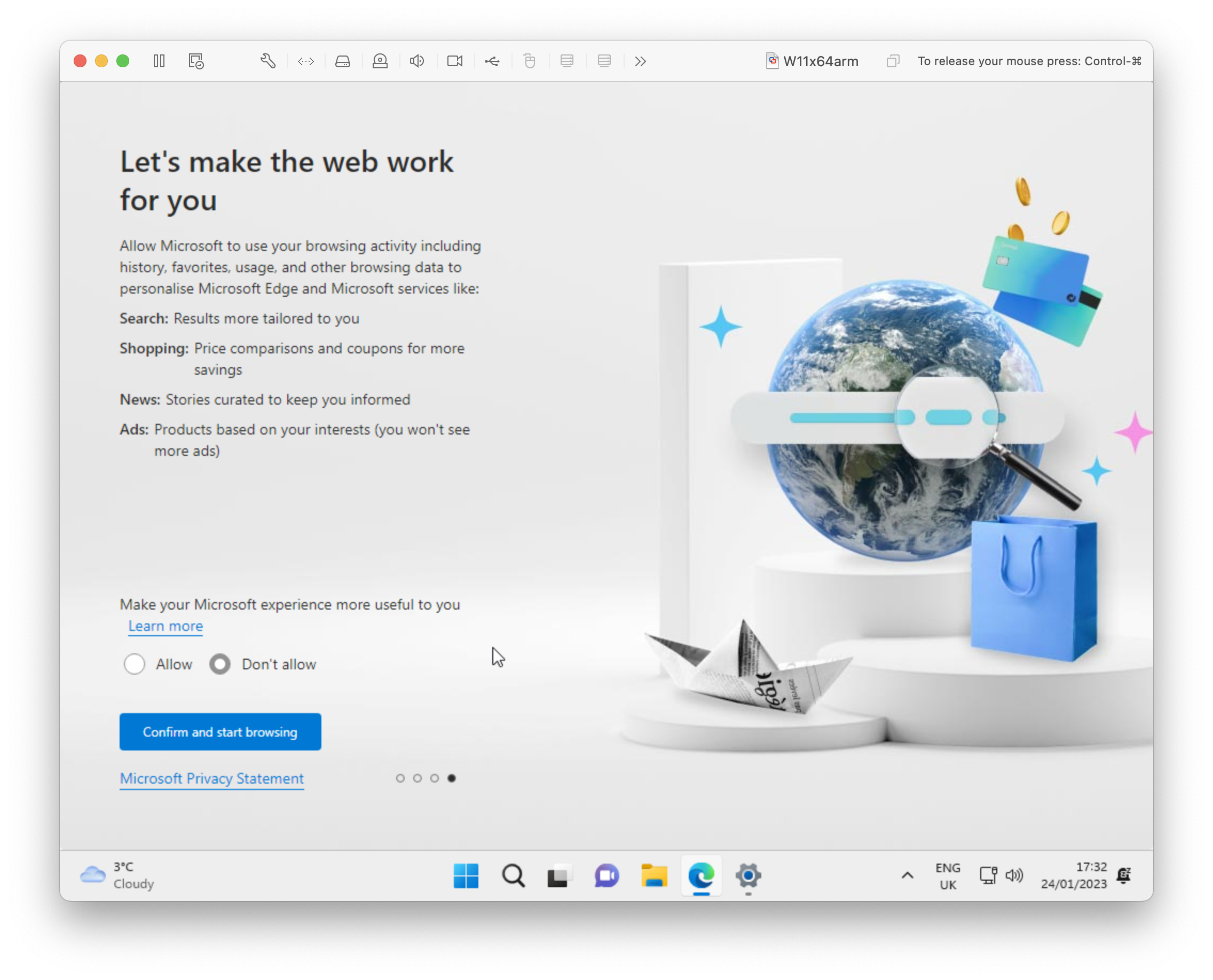
Let's make the web work for you
Selected 'Don't allow'!
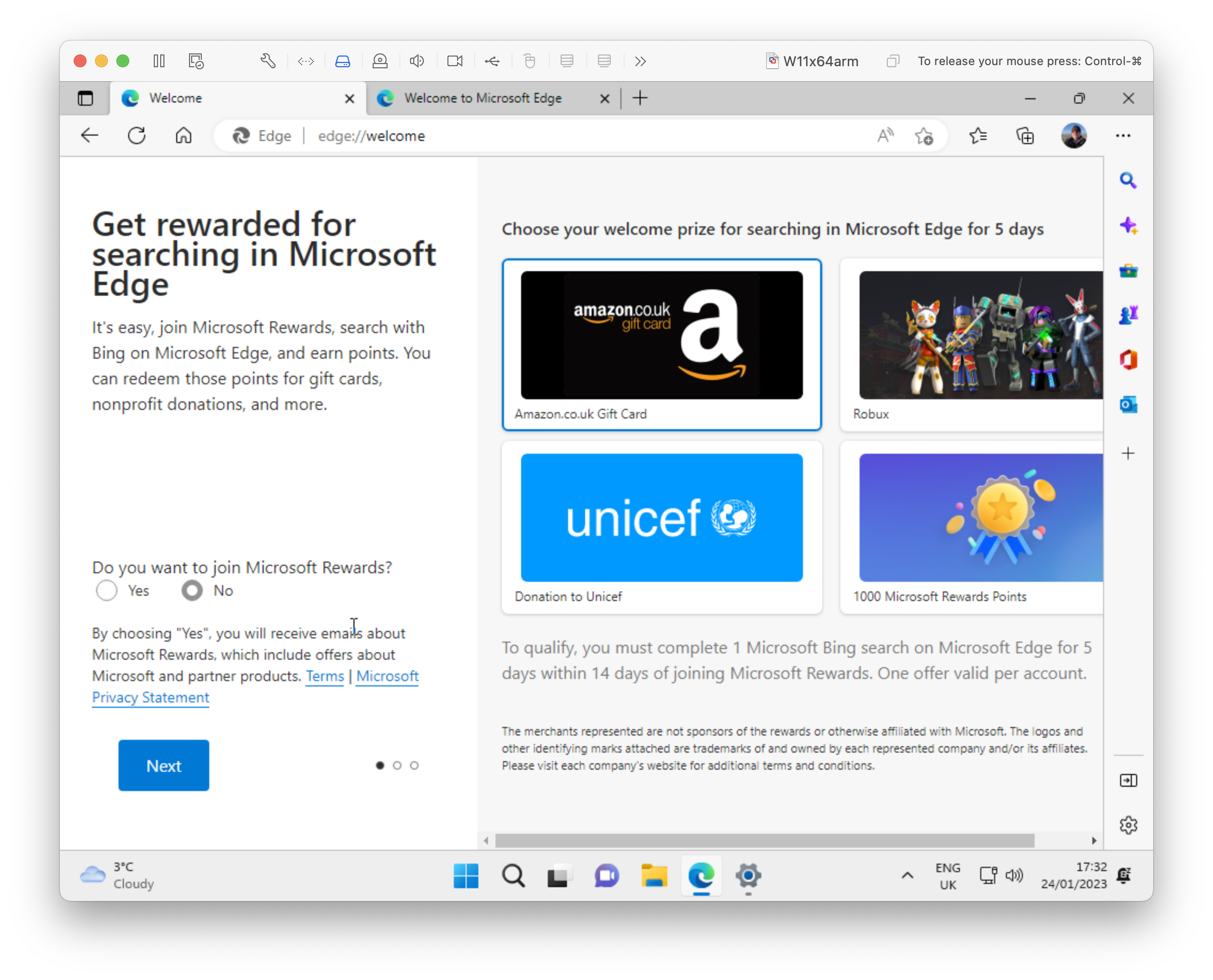
Get rewarded for searching in Microsoft Edge
Selected 'No'!
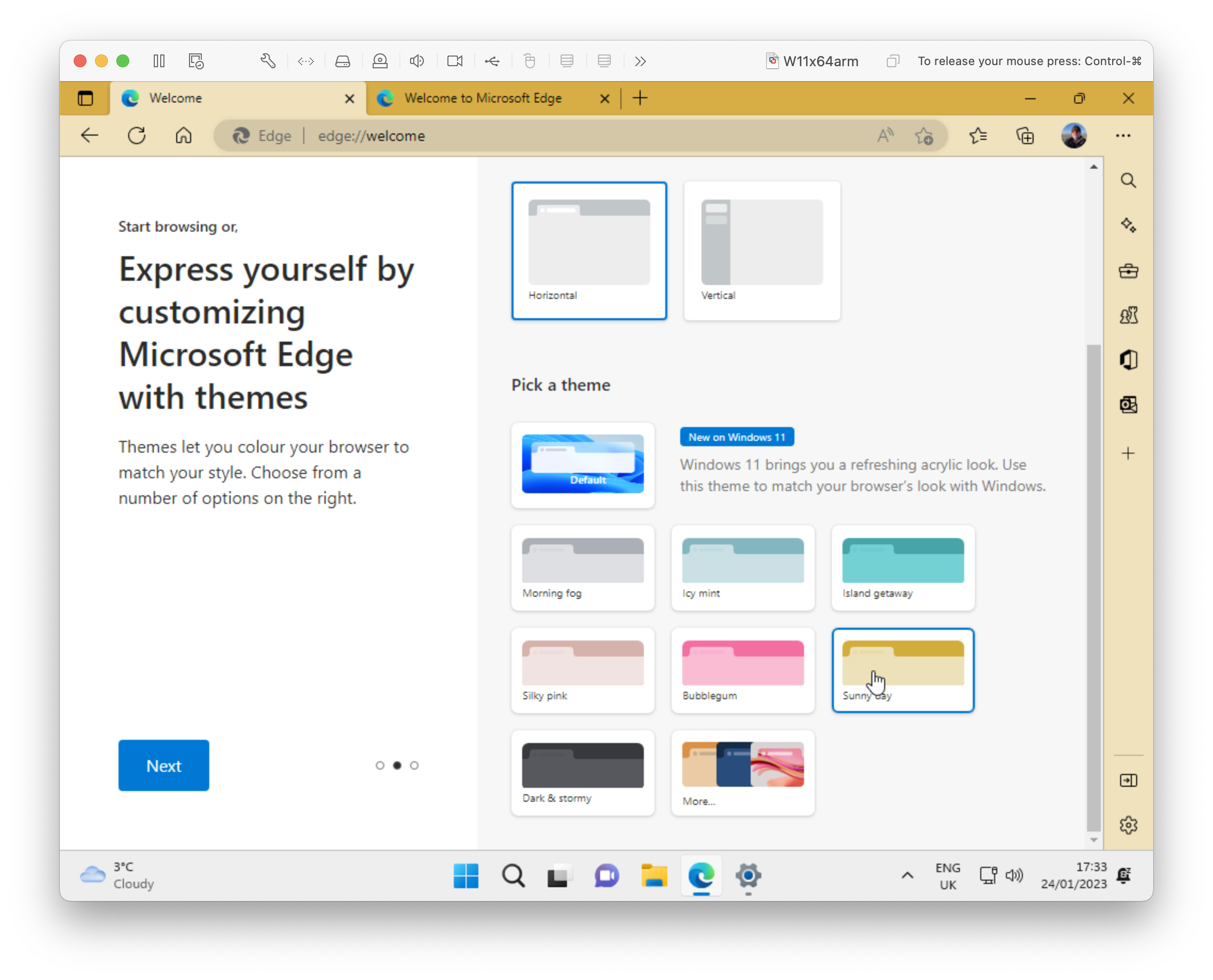
Express yourself by customising Microsoft Edge
Chose 'Sunny Day'!

Get to the sites you love right from your Windows taskbar
Unselected all, Chose 'Finish'!
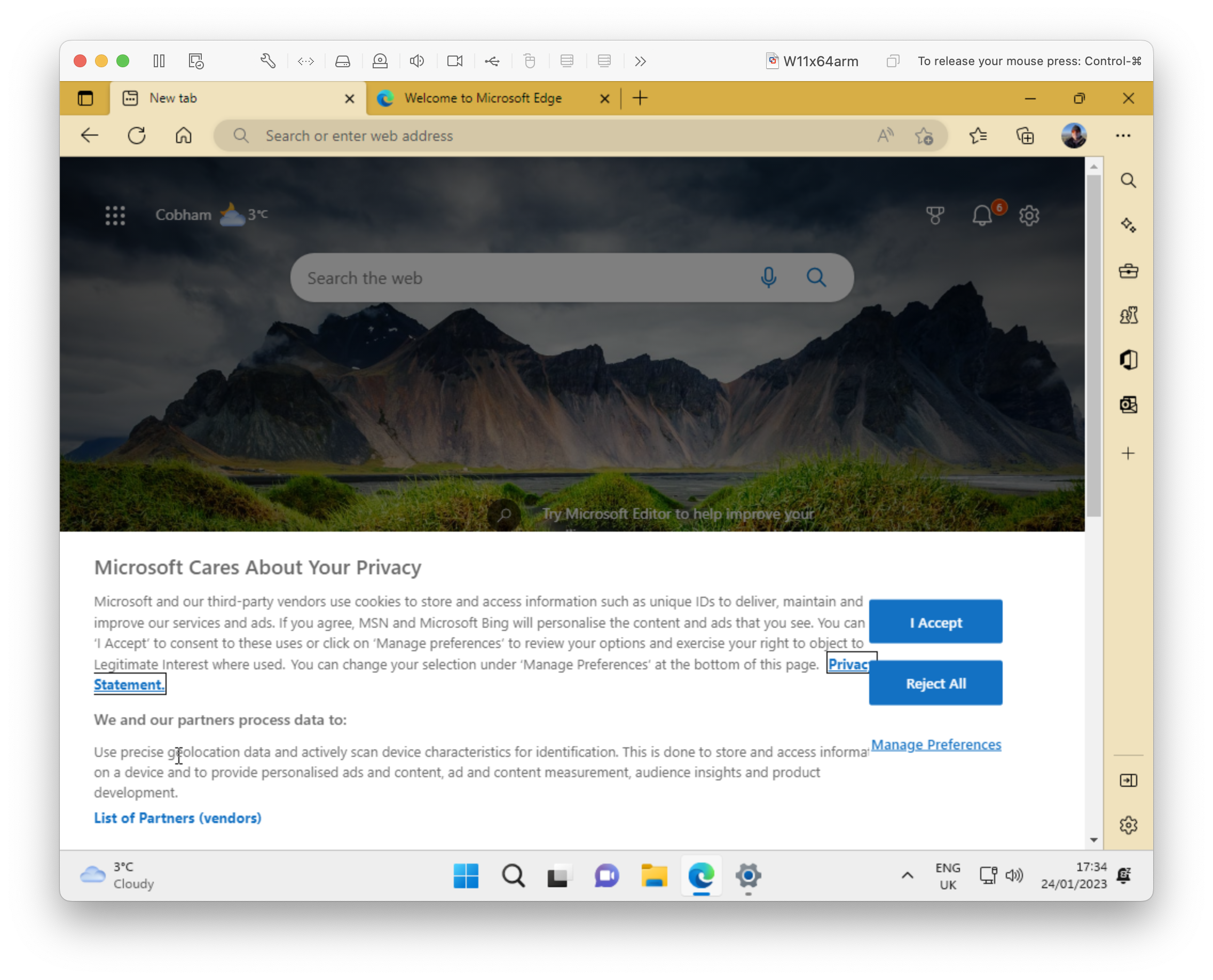
Microsoft cares about your privacy
Chose 'Reject All'!
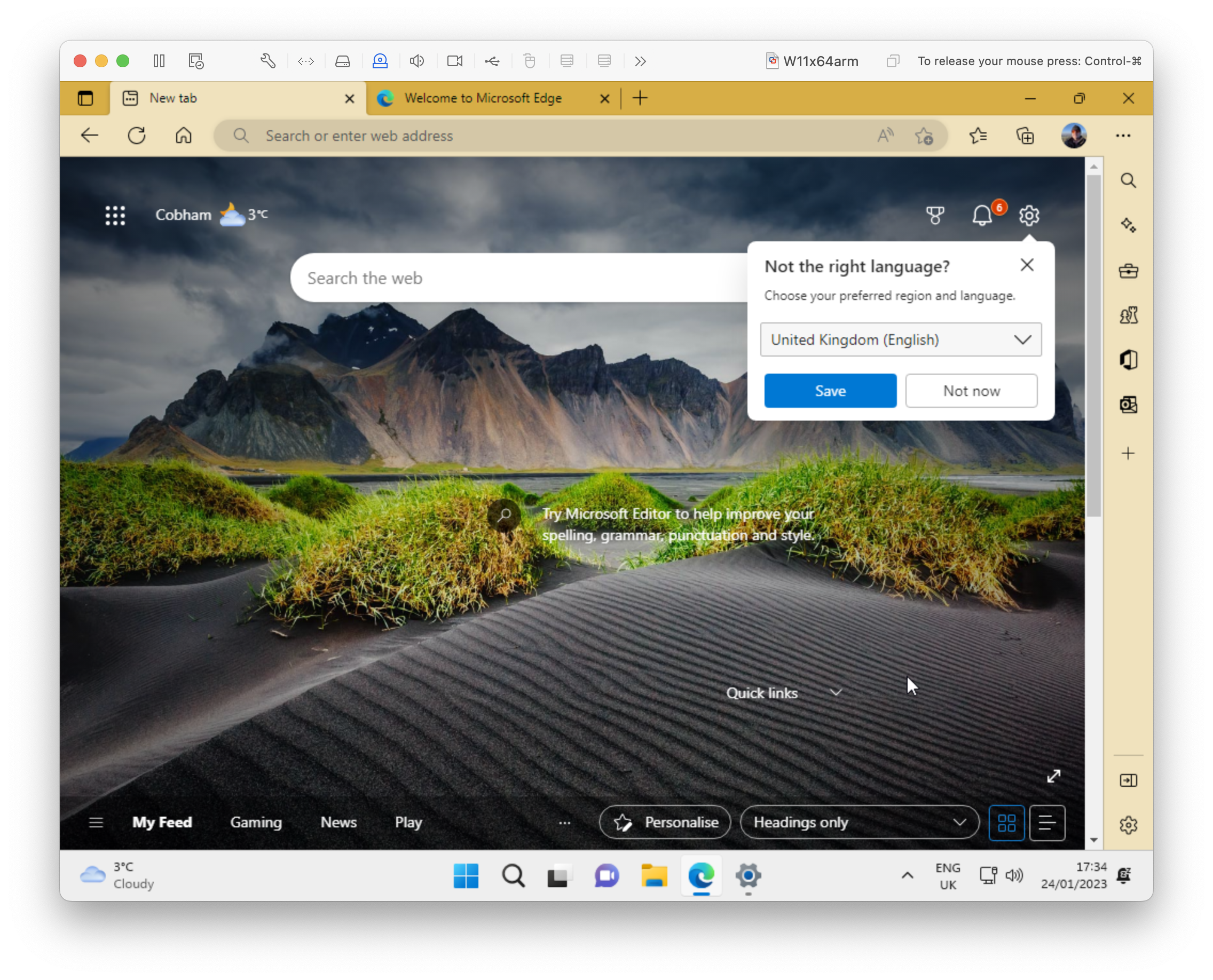
Not the right language
Chose 'Save'

Search the web
At last!
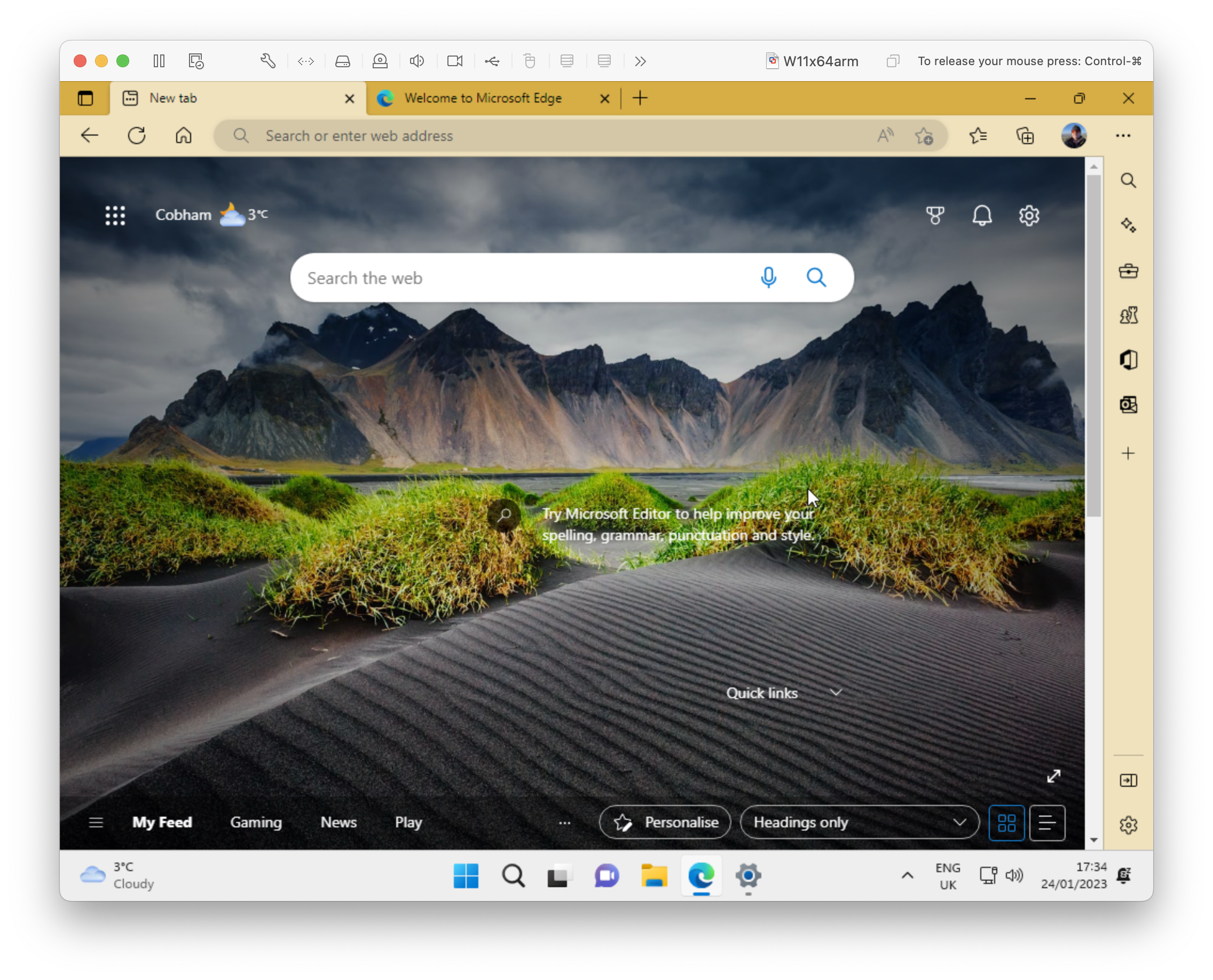
Search the web
Its done!

But wait, 'Your Phone' needs an update
We are getting the update redy for you...

Phone Link
Hold on while we get your devices ready...
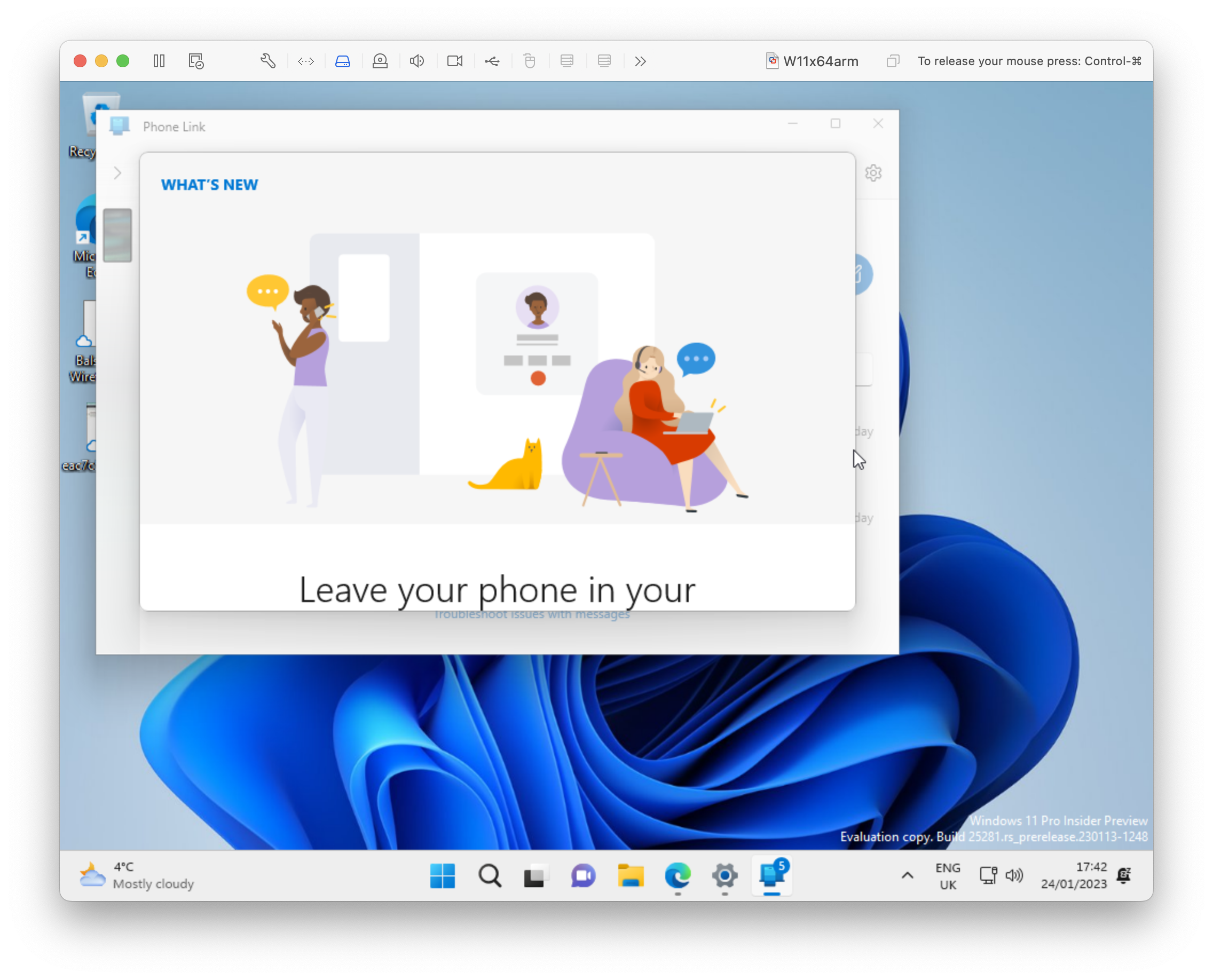
Phone Link
What's New...

Leave your phone in your pocket
Make and take calls right from your PC. Give it a try today!

Phone Link - My Devices
I connected my Google Pixel phone as my prmry phone!

Phone Link - Messages
Text messages right on my Windows PC. (redacted)!

Phone Link - Photos
Phone photos right on my Windows PC.

Phone Link - Photos The Cure at Wembley!
Phone photos right on my Windows PC.
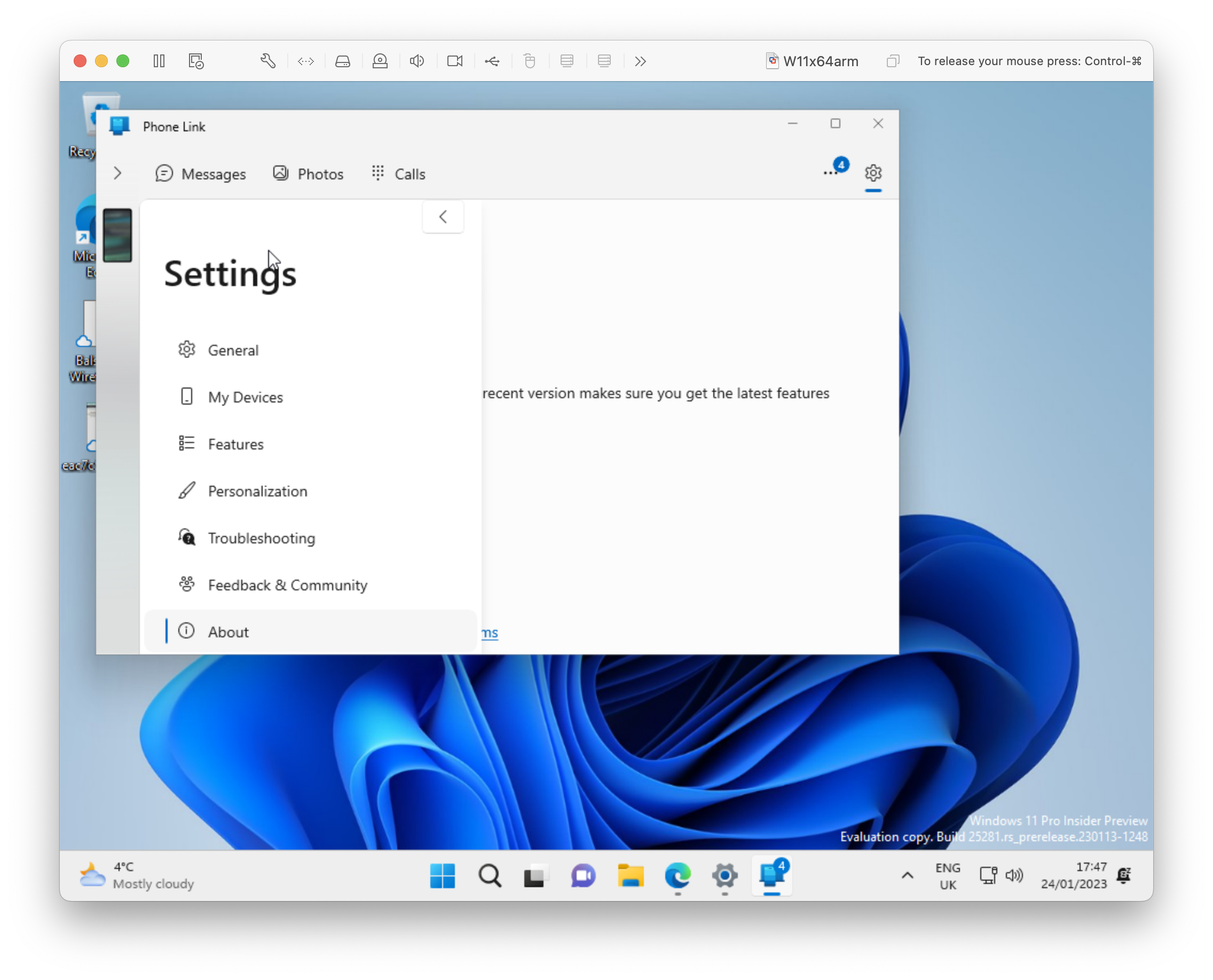
Phone Link - Settings
Phone photos right on my Windows PC.

Phone Link - Version number
Phone photos right on my Windows PC.
Activation and licensing
Getting Windows activated is the part most people find confusing. The short version: you need a genuine Windows 11 Pro licence for each VM instance you run. The good news is that Microsoft's product keys are platform-agnostic — a key that activates Windows 11 on an x64 PC will activate the Arm version in your VM without any special handling.
If you need Enterprise, the path is to licence Pro first and then upgrade via volume licensing. Althouh this article is about a local VM Microsoft also offers Windows 365 as a per-user, per-month cloud alternative for organisations that need Windows without the local VM overhead — worth thining about if you're evaluating options for a team rather than a personal setup.
You can read more about finding and managing your Windows product key in this article: Find your Windows product key.
What it's like in use
Fast. Noticeably, impressively fast — in a way that still catches you off guard if you're used to the sluggishness of x86 virtualisation on older Intel hardware. The Apple silicon architecture gives the hypervisor a lot to work with, and VMware Fusion makes good use of it.

Chrome for Windows Arm runs perfectly, syncing your profile and extensions without any configuration. Most major productivity apps now ship Arm-native Windows builds, so the app compatibility picture is much better than it was two or three years ago. That said, there are real limitations worth knowing before you commit:
- 32-bit Arm apps from the Microsoft Store are not supported on M-series Macs, and Microsoft is actively deprecating them across all Arm versions of Windows — so this is increasingly a non-issue, but worth checking if you rely on older Store apps.
- x64 and x86 emulation is supported, so many legacy Windows applications will run, albeit with a performance penalty compared to native Arm builds.
- DirectX 12-dependent apps and games have limitations in this environment. Casual gaming is possible, but don't expect a full gaming rig experience.
- Nested virtualisation is not supported — features like Windows Subsystem for Android, Windows Sandbox, and Virtualization-based Security (VBS) won't work inside the VM.
For development, testing, and running Windows-only productivity software, none of those caveats matter much. The combination of VMware Fusion and Windows 11 Arm on Apple silicon is, in 2026, a genuinely capable setup — and one that would have seemed implausibly good just a few years ago.