

Scalable Vector Graphics (SVGs) work better for logos, but are not enabled by default in Joomla.
Scalable Vector Graphics have been around since before the millennium, yet in 2026 they remain the undisputed best format for logos, icons, and any graphic that needs to look sharp across the full range of screen sizes and resolutions we now take for granted. SVG is an open standard for vector graphics stored in XML text files. Because SVG files can also contain executable code and other potentially harmful content, Joomla takes a cautious approach and does not enable the format by default. That caution is well-founded, but it should not put you off: once you understand the workflow, enabling SVG on your Joomla site is straightforward and the visual improvement — especially on high-density displays — is immediately obvious.
This article explains how to enable SVG in Joomla, what the security considerations are, and how to prepare your SVG files so they pass Joomla's sanitiser without a fight.
TL:DR – SVG is the right choice for crisp, responsive graphics in 2026. The setup takes around 30 minutes and the quality difference over raster formats is striking on any modern display.
Contents
- Scalable Vector Graphics (SVGs) work better for logos, but are not enabled by default in Joomla.
- Browser support for Scalable Vector Graphics
- SVG in the Joomla Cassiopeia template
- Enabling SVG in Joomla
- Why Joomla sanitises SVG files
- Preparing SVG files for Joomla
- Option 1 — Export with outlines from your design tool
- Option 2 — Run the file through SVGOMG
- Exported with outlines
- Processed by SVGOMG
- PNG for comparison
- Is SVG worth the effort in Joomla?
- Using SVG as your site logo in Joomla 5
- References
Browser support for Scalable Vector Graphics
SVG has enjoyed universal browser support for well over a decade. Every browser you are likely to encounter in 2026 — desktop or mobile, evergreen or otherwise — renders SVG natively. Browser support is simply not a concern anymore. The only question is how to get your SVG files working smoothly inside Joomla itself.
SVG in the Joomla Cassiopeia template
Joomla's default Cassiopeia template has shipped with an SVG brand logo since Joomla 4, and that remains the case in Joomla 5. The logo is placed directly inside the template's folder structure, which means it bypasses the media manager's upload checks entirely. That tells you something important: Joomla itself trusts SVG files that it controls, but applies strict scrutiny to files uploaded by site administrators. Understanding that distinction is the key to working with SVG in Joomla confidently.

Enabling SVG in Joomla
SVG support is enabled through the Media Manager options in the Joomla Administration panel. The steps are the same in Joomla 5 as they were in Joomla 4, so if you are running either version this process applies to you.
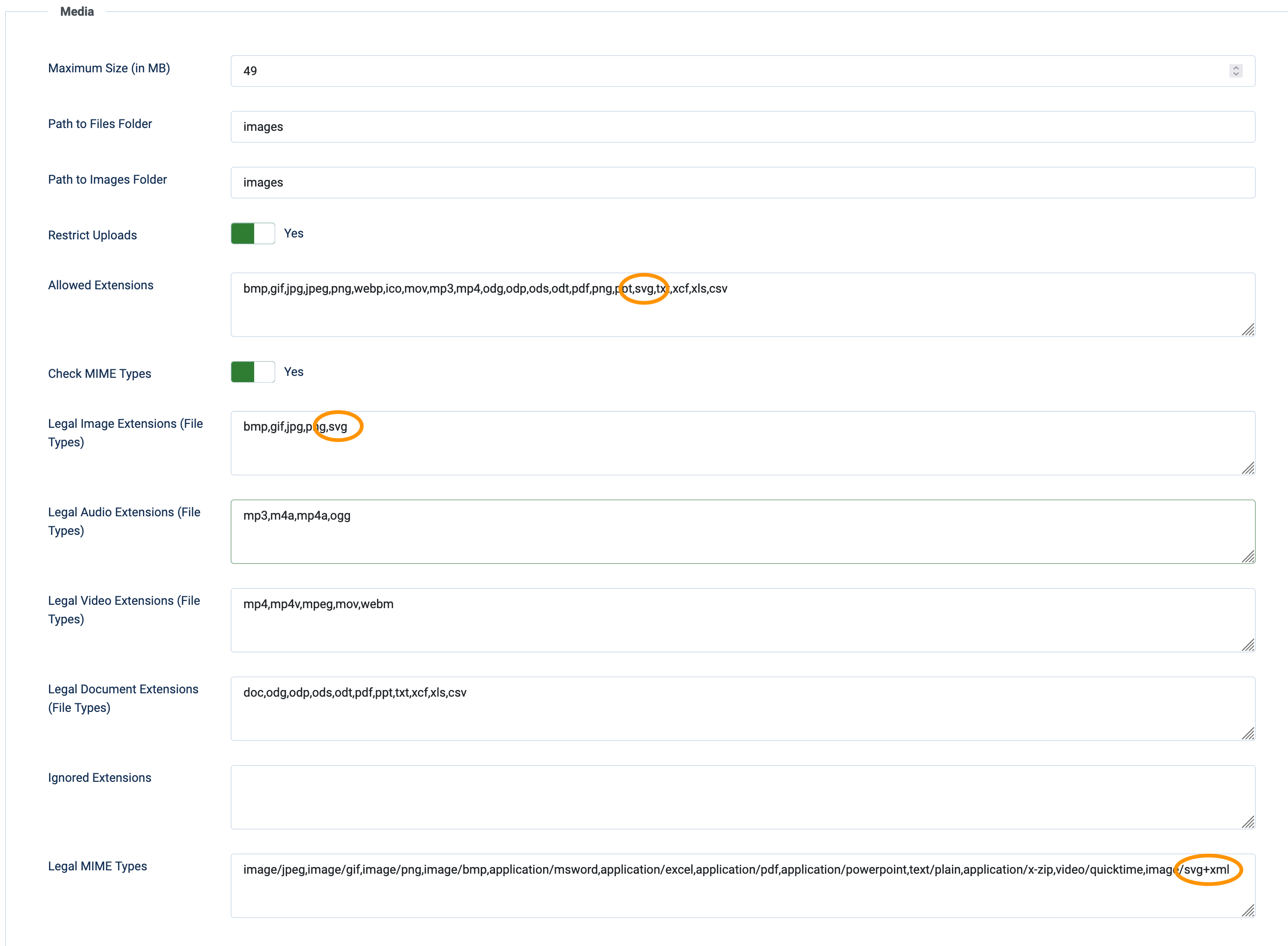
- Add –
svgto Allowed Extensions - Add –
svgto Legal Image Extensions - Add –
image/svg+xmlto Legal MIME Types
Once those three changes are saved, the media manager will accept SVG uploads — provided the files themselves pass Joomla's built-in sanitiser. That proviso is where most people run into trouble.
Why Joomla sanitises SVG files
Unlike JPEG or PNG, an SVG file is an XML document. It can contain JavaScript event handlers, external resource references, embedded scripts, and other constructs that are perfectly legitimate in some contexts but represent a real security risk inside a CMS. A malicious SVG uploaded to a Joomla site could, in the wrong circumstances, be used to execute code in a visitor's browser. Joomla's sanitiser scans uploaded SVG files and rejects — or strips — anything it considers suspicious.
In earlier Joomla 4 releases, a rejected upload would simply fail silently, which was confusing. Current Joomla 5 releases surface a clear error message when a file is blocked: The file looks suspicious and cannot be uploaded. That is a meaningful improvement, because it tells you the file needs cleaning rather than leaving you to guess what went wrong.
Joomla 5 also introduced refinements to the SVG sanitisation pipeline itself, making it more precise about what it strips. Legitimate SVG features that were previously caught as false positives — certain filter effects and clip-path definitions, for example — are now handled more gracefully. The result is that a well-prepared SVG file is far more likely to upload cleanly in Joomla 5 than it was in the early Joomla 4 releases.
Preparing SVG files for Joomla
The practical solution is to sanitise your SVG files before uploading them. There are two reliable approaches, and both produce files that pass Joomla's checks without issue.
Option 1 — Export with outlines from your design tool
If you create or edit SVG files in a vector design application, export with text converted to curves (sometimes called "outlines" or "paths"). This removes embedded font references and text elements that the sanitiser tends to flag. The option is available in Affinity Designer, Affinity Publisher, Adobe Illustrator, Inkscape, and most other professional vector tools. The resulting SVG is slightly larger in file size but visually identical and reliably accepted by Joomla.
Inkscape in particular has become a strong open-source choice in 2026 and its SVG output is generally clean. Affinity Designer and Affinity Publisher remain popular paid options with straightforward SVG export controls.
Option 2 — Run the file through SVGOMG
SVGOMG is a browser-based tool that optimises and cleans SVG files using the SVGO engine. You upload your SVG, adjust the optimisation settings, and download a leaner, cleaner version. It removes metadata, comments, hidden elements, and other artefacts that Joomla's sanitiser objects to. It also meaningfully reduces file size, which is a bonus for page performance. SVGOMG has been updated alongside SVGO and remains one of the most reliable pre-processing steps you can take before uploading an SVG to any CMS.

Exported with outlines
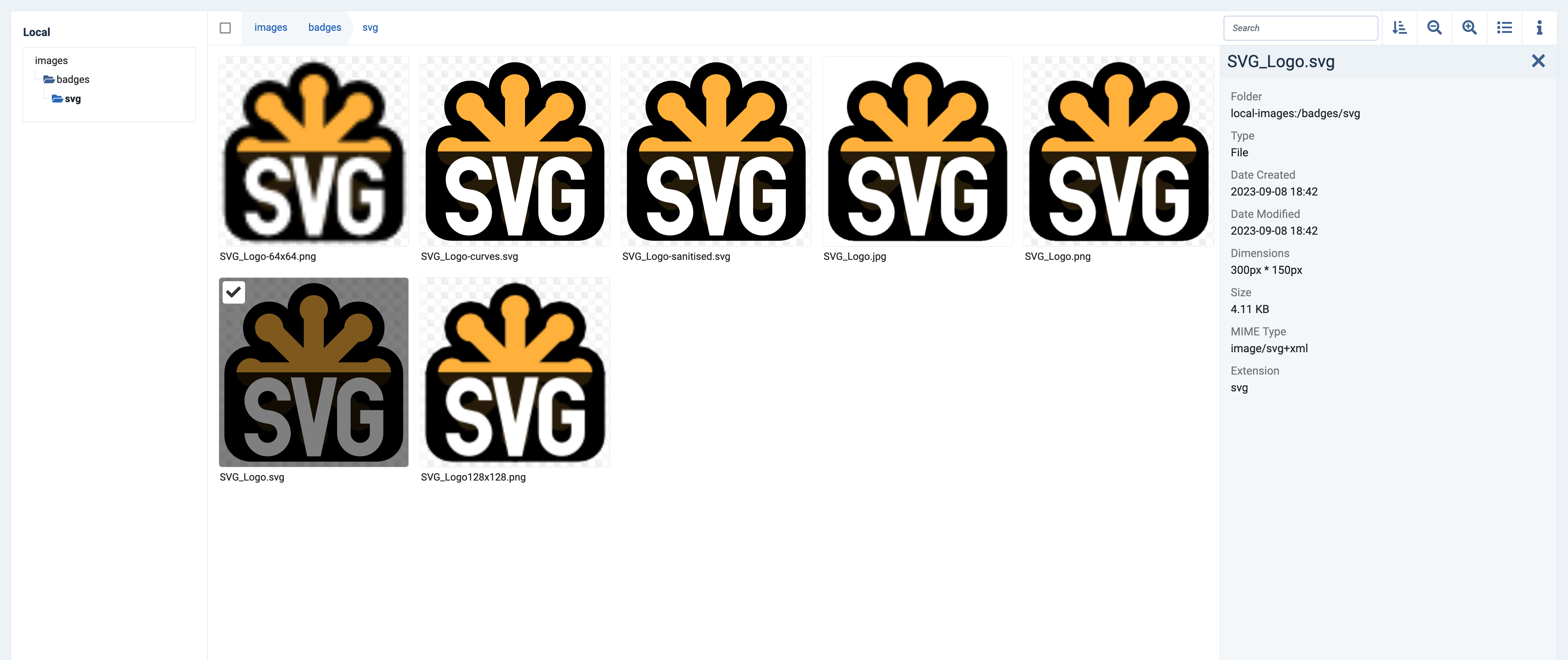
SVG Logo exported with text converted to curves — clean, Joomla-ready.

Processed by SVGOMG
SVG Logo optimised and sanitised by SVGOMG — smaller file, same result.

PNG for comparison
The same logo as a png — noticeably softer on curves and lettering.
Is SVG worth the effort in Joomla?
The visual comparison above answers the question. SVG files render text and curves with precision at any size; raster formats like PNG and JPEG do not. On a modern high-density display — which now describes the majority of devices visiting your site — the difference between a well-prepared SVG logo and a PNG equivalent is immediately visible. The PNG looks soft; the SVG looks sharp.
Beyond logos, SVG is increasingly useful for icons, diagrams, and decorative illustrations anywhere on your Joomla site. SVG files are also typically smaller than equivalent raster images at display size, which helps with Core Web Vitals scores — a ranking factor that continues to matter in 2026. The 30-minute investment to understand and enable SVG in Joomla pays for itself quickly.
Using SVG as your site logo in Joomla 5
Joomla 5 makes it straightforward to set an SVG as your site logo through the template's style settings. Navigate to System → Templates → Site Templates Styles, open the Cassiopeia style, and use the Logo field to select your SVG from the media manager. As long as the file has been prepared and uploaded correctly, it will display at any size without any loss of quality. If you are using a child template or a third-party template, the process is similar — check the template's documentation for its logo field location.
One practical note: always specify explicit width and height attributes on your <img> tag even when using SVG. This preserves layout stability and avoids cumulative layout shift, which affects your Core Web Vitals score.
References
See also:
- Can I use… SVG (basic support) — comprehensive browser support data
- Template SVG Logos — Joomla Documentation
- SVGOMG — browser-based SVG optimiser and cleaner
- SVG-Edit — open-source SVG editor that runs in the browser
- Inkscape — free, open-source professional vector graphics editor
- SVG — MDN Web Docs — comprehensive SVG reference from Mozilla
- J!4.x: How to use an SVG file as a site logo — Joomla Community Forum
- W3C SVG Working Group — the SVG specification and current development
Note: Except for the Cassiopeia logo, the SVG logos used on this page are derivatives of the W3C SVG logo and are therefore licensed under CC BY-SA 4.0.
