
Multizone | All our technotes
If we've published it, you can find it here.

In 2026, many developers are still wary of proprietary licenses and telemetry, which is why VSCodium remains a popular choice among open-source enthusiasts who prefer a more transparent coding environment.
While the source code for Visual Studio Code (VSCode) is open-source, the pre-packaged version provided by Microsoft includes telemetry and tracking, prompting many to seek alternatives. Fortunately, you can clone and build the source code under the OSI-approved MIT license. However, for most, the hassle of compiling is unnecessary — enter VSCodium, a community-driven, freely-licensed binary distribution of VSCode that eliminates the telemetry concerns.
Open-source licenses comply with the Open Source Definition, allowing software to be freely used, modified, and shared. For a license to be approved by the Open Source Initiative (OSI), it must pass their rigorous review process.
TL;DR – Compiling the open-source version is a distraction for many. Thankfully, VSCodium simplifies the process, providing a hassle-free alternative that is fully compliant with open-source principles.
{ToC}
Telemetry and Tracking
Despite its efforts to minimize tracking, some telemetry may still be present in VSCodium. Additionally, each extension you install could introduce new tracking vectors. The project's documentation provides guidance on identifying and disabling unwanted telemetry features.
The VSCodium project replaces Microsoft's update services with its own, ensuring that extension updates come from the Open VSX registry rather than the vendor's marketplace.
Proprietary Tools and Extensions
Some proprietary extensions are restricted to Microsoft's version of VSCode, but many open-source alternatives exist. Most extensions, including those for Flutter, are compatible with VSCodium, making it a versatile choice for developers.
Open VSX Registry
The Open VSX Registry serves as a community-driven, fully open platform for publishing VSCode extensions, built on Eclipse Open VSX. This ensures a vendor-neutral, open-source environment that promotes trust and collaborative governance.
Flutter and VSCodium
Installing Flutter Support in VSCodium
Follow the Set up an editor instructions for Visual Studio Code, as they apply directly to VSCodium.
- Start VSCodium.
- Navigate to Command Palette from the View menu.
- Type "install" and select Extensions: Install Extensions from the dropdown.
- Search for "flutter" in the extensions field, select Flutter, and click Install — this will also install the required Dart plugin.
- Open the Command Palette again and select Flutter: Run Flutter Doctor.
- Check the output pane for any issues related to Flutter and resolve them as needed.
- Restart VSCodium and ensure a running simulator or connected device appears in the status bar.
Editing, Running, and Debugging Your Code
The Flutter extension enhances your coding experience with features like syntax highlighting, code completion, and type declaration navigation. The Problems menu item provides a line-by-line analysis of any issues found in your code.
For debugging, you can utilize Flutter DevTools alongside VSCodium's built-in debugging capabilities. Flutter's stateful hot reload is supported, allowing for rapid iteration during development. For more details, check out Using hot reload.
Below are screenshots showcasing VSCodium building and running a Flutter application on macOS, connected to an Android device.
 A Flutter project with the Flutter DevTools open
 Flutter-based Android app with visible baselines
What's Changed in 2026
In 2026, VSCodium continues to evolve as a robust alternative to Microsoft's proprietary offerings. The project has made strides in improving installation methods across platforms, including support for Windows Package Manager (WinGet) and Snap for Linux. Users on Parrot OS, Debian, Ubuntu, and Arch Linux can easily install VSCodium, with Parrot OS even pre-installing it from their official repositories. This enhances accessibility and encourages wider adoption among developers who prioritize open-source solutions. For macOS the simplest installation is via Homebrew using brew install --cask vscodium.
- Details

A personal list of the computers I've owned or used daily — from an IBM XT in 1985 to an Apple Silicon Mac Studio in 2026. These machines shaped how I work, think, and tinker.
I'm not entirely sure what prompted me to document these, but here we are. Each one meant something at the time — and looking back across nearly four decades of personal computing, the arc is remarkable. The IBM XT Model 286 I bought for home in 1987, when having a computer at home was genuinely unusual. The Mac SE/30, which felt like a rocket ship the day I unboxed it. The Sun Ultra 10 — finally a SPARC workstation that made sense on a desk, after the strange detour that was the Sun386i. The NEXTcube running Lotus Improv, which turned out to be the direct ancestor of macOS as we know it today. I still have the NEXTcube and the Ultra 10, both fully loaded, both sitting quietly doing nothing useful. And then the Mac Studio — Apple Silicon at its most refined, the machine I reach for every single day.
In 2026, most of these machines are firmly museum pieces, though a surprisingly active retro-computing community keeps many of them alive. Prices for well-preserved examples of the SE/30, NEXTcube, and even the original Bondi Blue iMac have risen sharply on the secondhand market over the past few years. What follows is a personal record, not a buyer's guide — though I've added notes on what each machine meant at the time and where it sits in history now.
2026 update
Since this article was first written, the computing landscape has shifted considerably. Apple's transition to its own silicon — begun with the M1 in late 2020 — is now fully mature. The M5 generation powers the current Mac lineup, and the performance-per-watt gains over that first-generation Intel era are extraordinary. My Mac Studio (M1 Ultra) remains genuinely fast for most workloads, though the newer variants have pulled ahead in sustained GPU and neural-engine tasks.
The retro-computing hobby has also grown substantially. Communities around 68k Macs, NeXT hardware, and early Sun workstations are more organised than ever, with active forums, modern replacement capacitor kits, and even FPGA-based recreations of classic chips. If you own an SE/30, the first thing you should do in 2026 is recap the logic board — the original surface-mount capacitors leak and cause catastrophic damage if left unattended.
The NEXTcube has also found a new generation of admirers, partly driven by renewed interest in NeXTSTEP's influence on the web (Tim Berners-Lee wrote the first web browser on a NeXT machine) and partly because running a period-correct Lotus Improv session still feels like visiting the future that never quite happened.
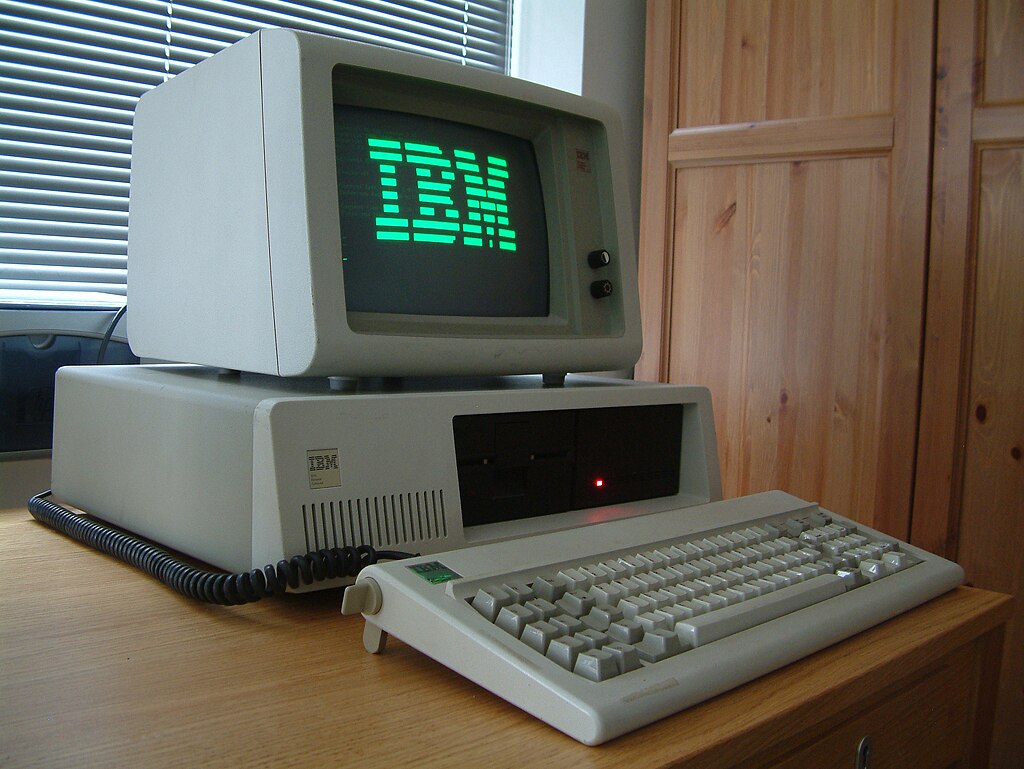
IBM PC XT
Released: 1983
CPU: Intel 8088 @ 4.77 MHz
RAM: 128 KB – 640 KB
The machine that turned the IBM PC from an office curiosity into a platform. The XT added a built-in 10 MB hard drive — a genuine luxury in 1983 — and an expansion bus that third-party manufacturers rushed to fill. It established the architecture that dominated personal computing for the next decade and a half. DOS 2.0 shipped alongside it, introducing a hierarchical file system that most users had no idea how to use. Working examples are plentiful on the secondhand market even now; the 8088 is practically indestructible.
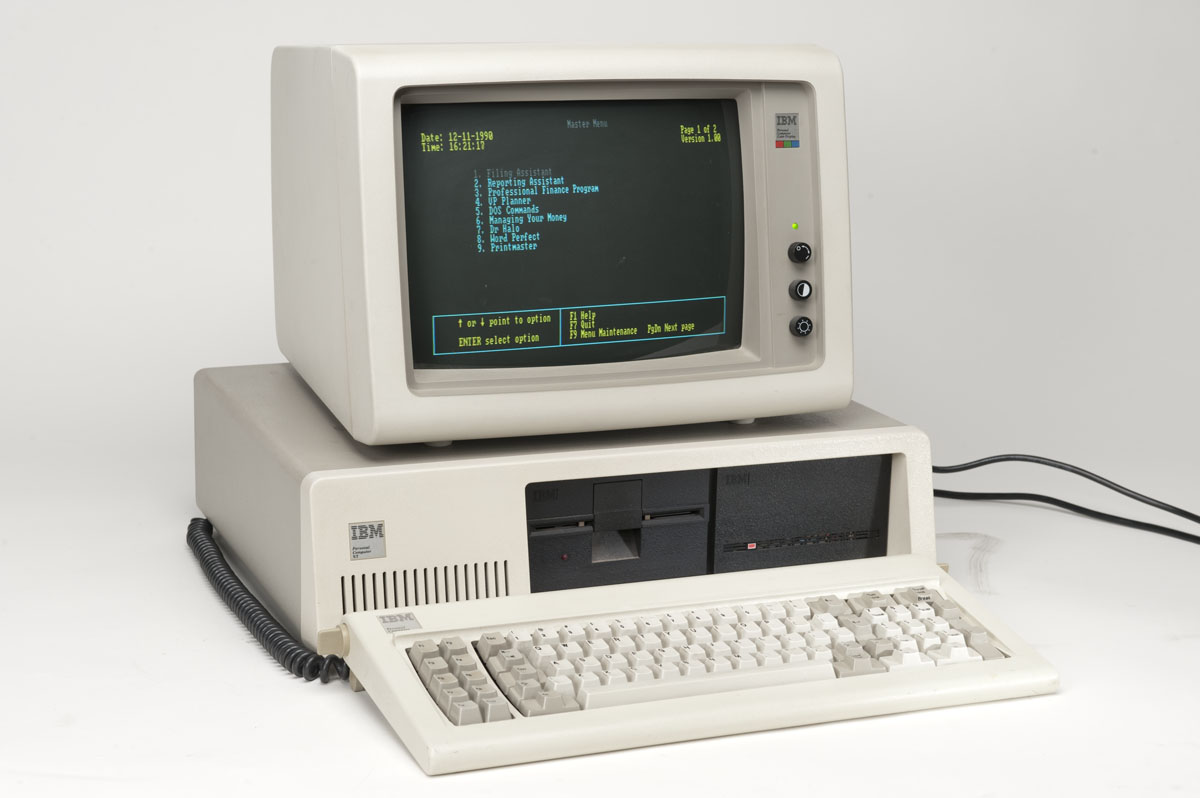
IBM PC XT Model 286
Released: 1986
CPU: Intel 80286 @ 6 MHz
RAM: 640 KB – 1 MB
This is the one I actually bought, in 1987, when home computers were still a novelty and spending that kind of money on one felt faintly reckless. The 286 was already being overshadowed by the AT and the incoming 386 by the time I got it, but it ran Lotus 1-2-3, WordPerfect, and Borland Sidekick without complaint, which was just the job. IBM's decision to keep the XT chassis while slotting in a 286 was pragmatic rather than inspired, but it made the machine affordable. In retrospect, it was the last IBM PC I ever bought.
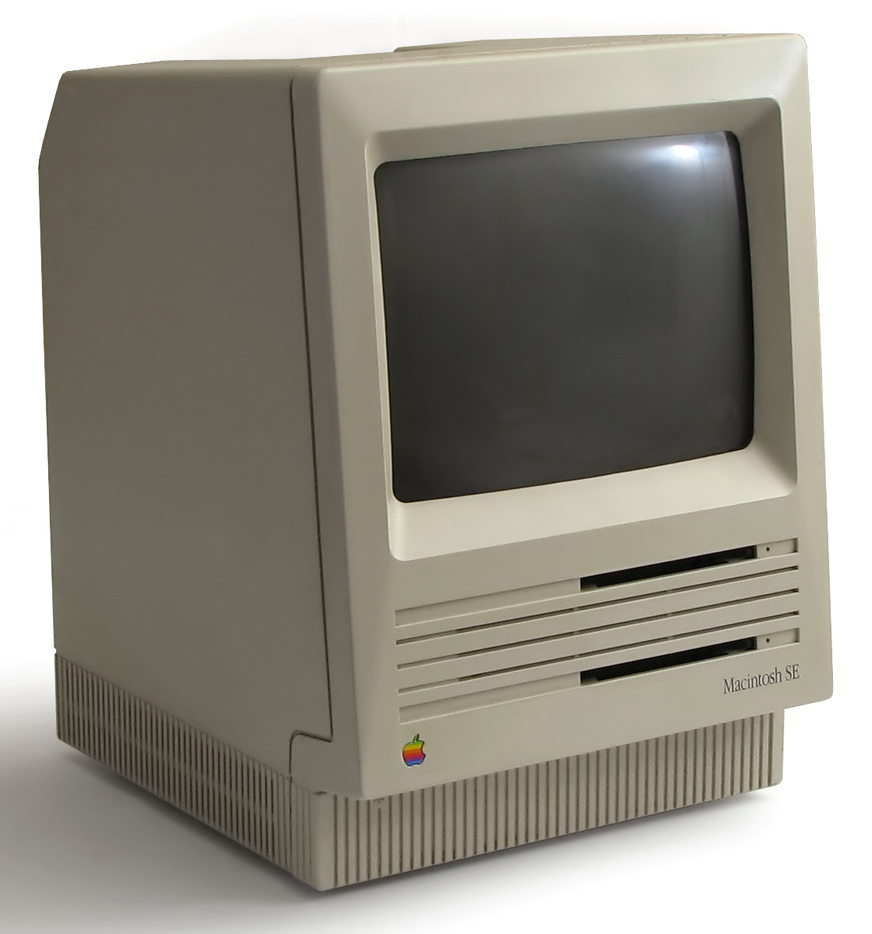
Apple Mac SE
Released: 1987
CPU: Motorola 68000 @ 8 MHz
RAM: 1 MB – 4 MB
The SE was the first Mac to include an internal hard drive and an expansion slot, making it the point at which the original compact Mac form factor became genuinely practical. The 9-inch monochrome screen was sharp and the all-in-one design was ahead of its time — Apple wouldn't revisit that idea seriously until the iMac a decade later. The SE's FDHD variant added a high-density floppy drive that could read DOS disks, which was more useful than it sounds in a mixed-platform office.
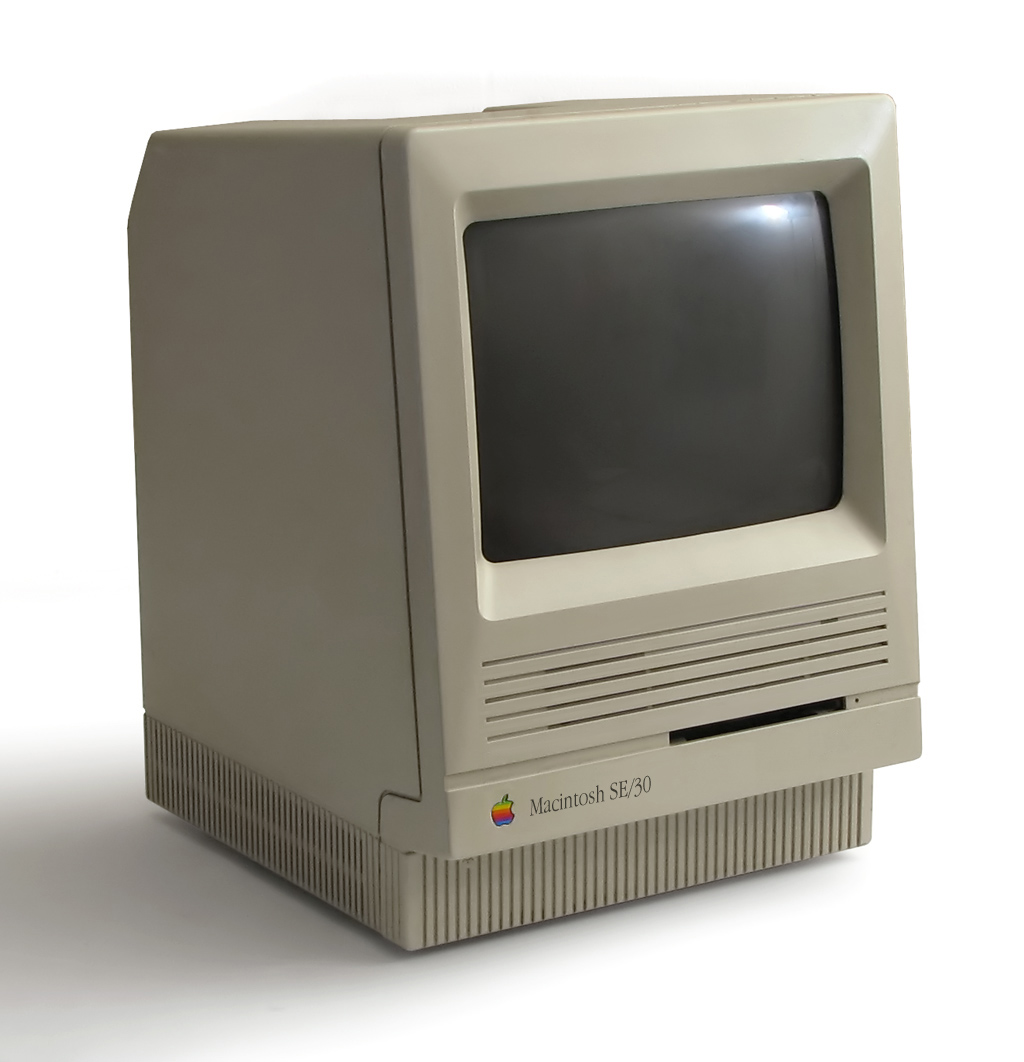
Apple Mac SE/30
Released: 1989
CPU: Motorola 68030 @ 16 MHz
RAM: 1 MB – 128 MB
Widely regarded as the finest compact Mac ever made, and it's hard to argue. The 68030 at 16 MHz with a 68882 FPU, support for up to 128 MB of RAM, and a PDS expansion slot in the same compact body as the original 128K Mac — it was an extraordinary machine for 1989. It ran A/UX, Apple's BSD Unix, which made it genuinely useful as a workstation. In 2026, SE/30s command serious prices among collectors, and the capacitor-leakage problem means finding a fully working, already-recapped example is worth paying a premium for.
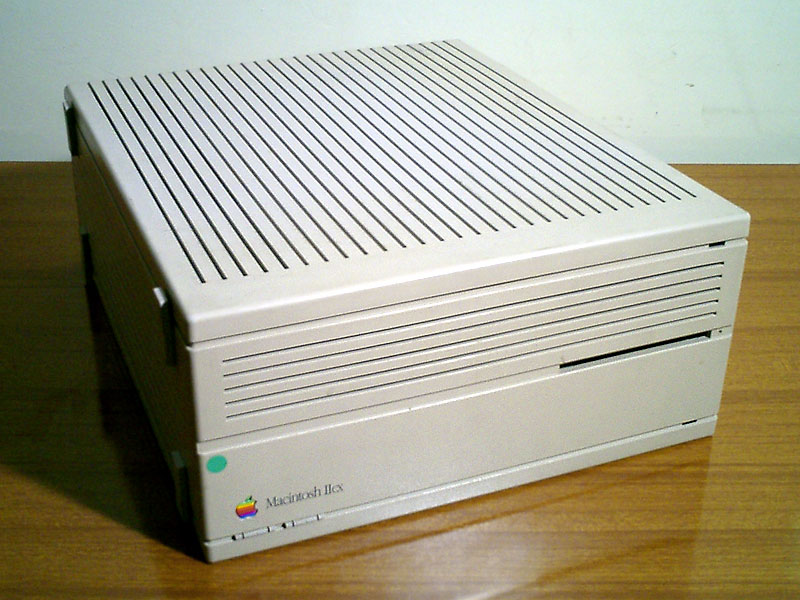
Apple Mac IIcx
Released: 1989
CPU: Motorola 68030 @ 16 MHz
RAM: 1 MB – 128 MB
The IIcx was the compact, affordable entry into the Mac II line — three NuBus slots instead of six, a smaller case, but the same 68030 muscle as its larger siblings. It was the machine that made colour Macs accessible to a wider professional audience. Desktop publishing, early digital imaging, and scientific software all ran well on it. The IIcx also introduced a tool-free case design that Apple's industrial design team was rightly proud of. A quiet workhorse that tends to be overlooked next to the SE/30, but deserves its place in the record.
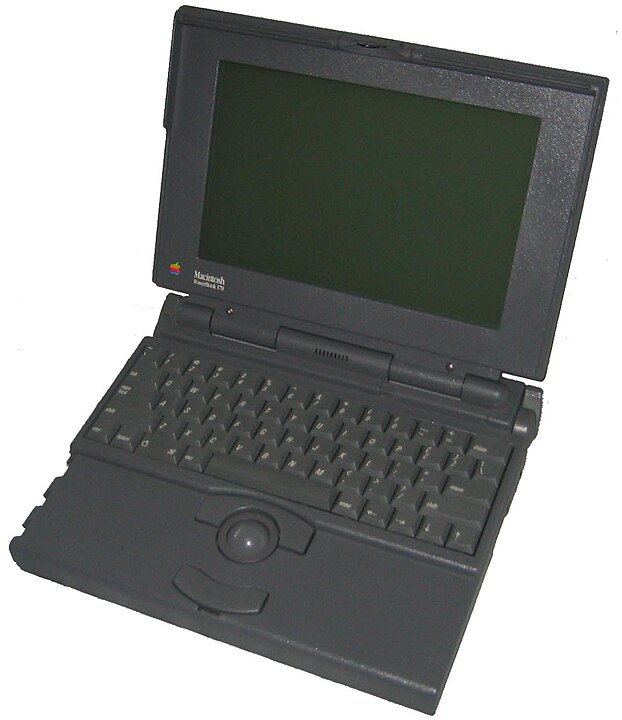
Apple PowerBook 170
Released: 1991
CPU: Motorola 68030 @ 25 MHz
RAM: 2 MB – 8 MB
The PowerBook 170 was the top of the first PowerBook line, and it arrived fully formed in a way that made every competing laptop look like a rough draft. The trackball was centred below the keyboard, the palm rests were generous, and the active-matrix LCD screen was genuinely readable. Apple's laptop design language was set here and barely needed revision for years. The 170 cost a significant sum at launch — roughly the price of a decent used car — but it was the machine that made mobile professional computing real. Every modern laptop owes it something. The colouful official bag drew envious looks from the drab grey Toshiba and Compaq carrying colleagues at the time!
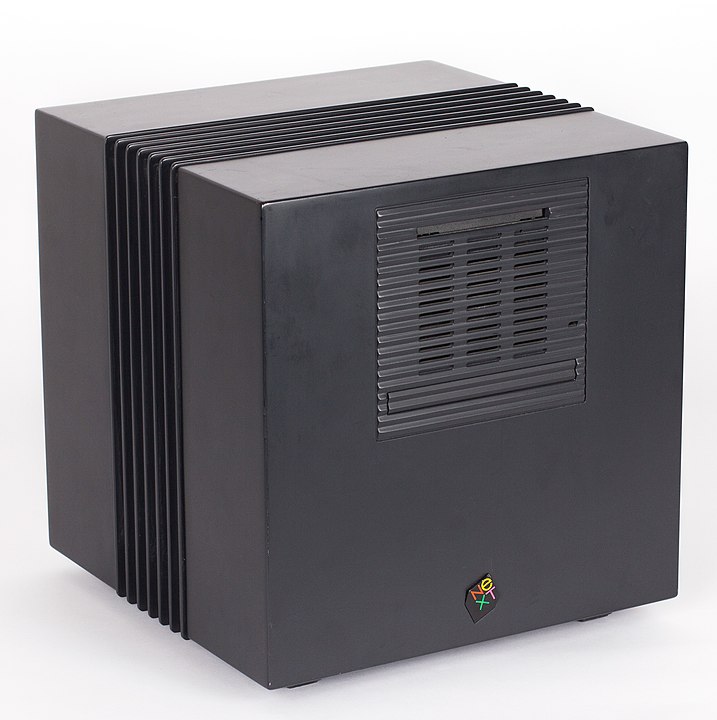
NeXTcube
Released: 1988
CPU: Motorola 68040 @ 25 MHz
RAM: 8 MB – 64 MB
Optional: NeXTdimension Intel i860 board
The direct ancestor of macOS. NeXTSTEP introduced Display PostScript, the Mach microkernel, Objective-C as the primary development language, and an object-oriented application framework that became Cocoa. Tim Berners-Lee wrote the first web browser and server on a NeXTcube at CERN. Lotus Improv — a genuinely revolutionary rethinking of the spreadsheet that Microsoft's Excel eventually absorbed in watered-down form — ran only on NeXT. Mine has the NeXTdimension board for full colour. In 2026 it remains one of the most historically significant personal computers ever made, and one of the most satisfying to actually use.
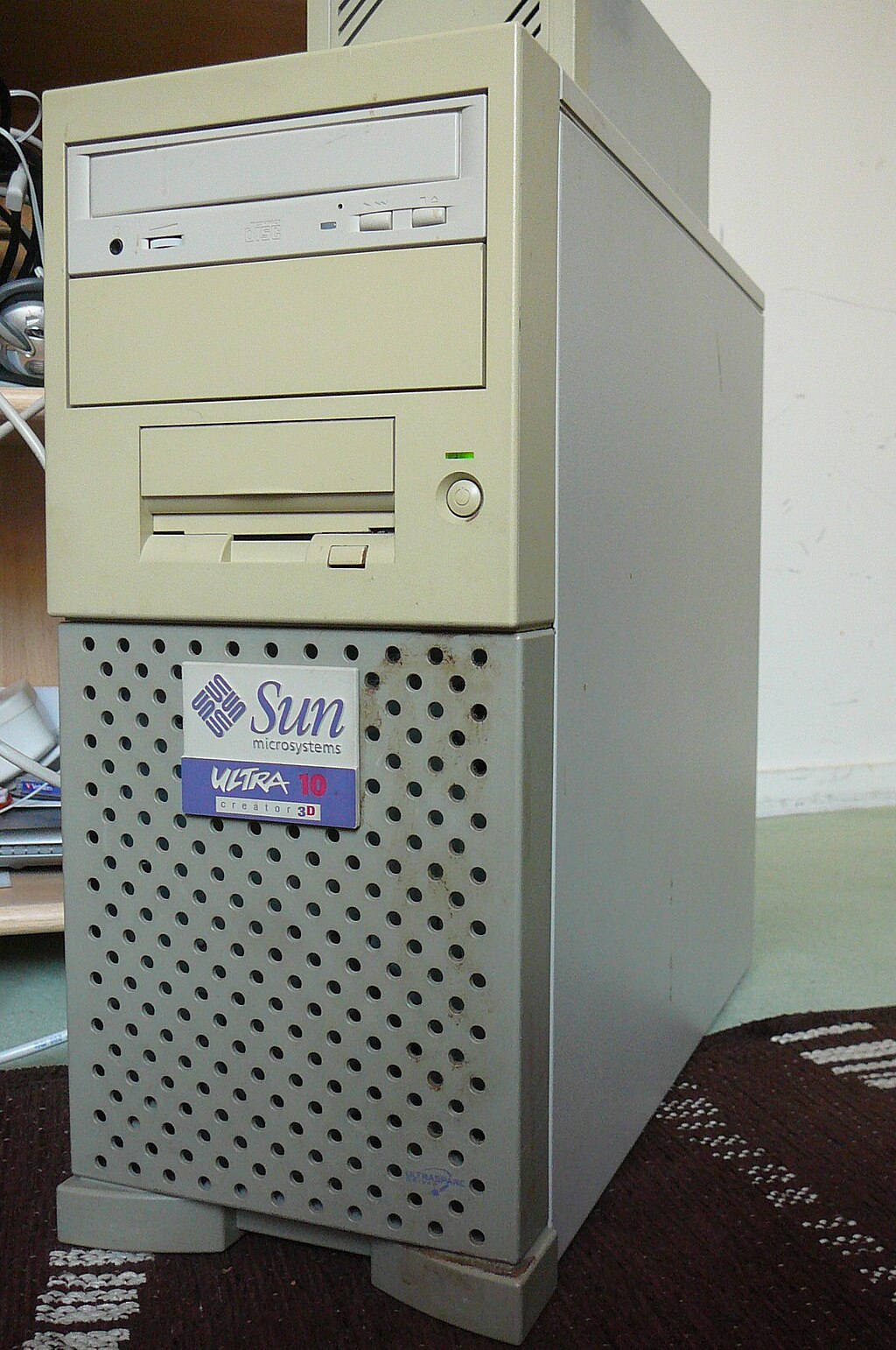
Sun Ultra 10
Released: 1998
CPU: UltraSPARC IIi @ 300 MHz
RAM: 64 MB – 1 GB
After the eccentric Sun386i — an x86 machine running SunOS that never quite decided what it wanted to be — the Ultra 10 was a relief. A proper SPARC workstation at a price that made sense, running Solaris 7 and later Solaris 8 with genuine stability. It had a Creator3D graphics card in mine, which made OpenGL work feel effortless at the time. Sun's decline and Oracle's eventual acquisition means Solaris is now a niche interest, but the Ultra 10 represents the high-water mark of the Unix workstation era before Linux and commodity x86 hardware swept everything else aside. Still boots. Still runs.
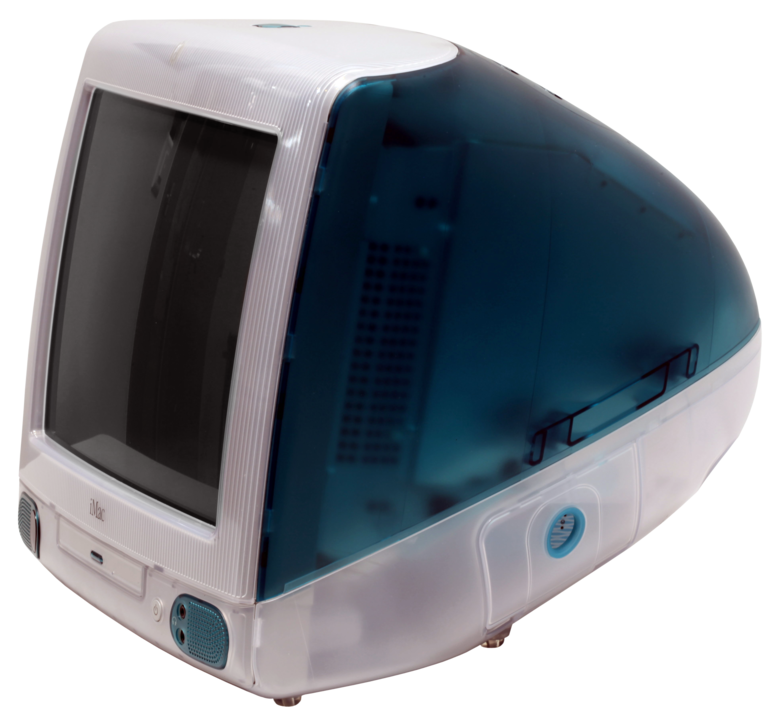
Bondi Blue iMac G3
Released: 1998
CPU: PowerPC G3 @ 233 MHz
RAM: 32 MB – 256 MB
The machine that saved Apple — not an exaggeration. The original Bondi Blue iMac arrived eighteen months after Steve Jobs returned and announced, in effect, that Apple was done apologising for being different. Jony Ive's translucent teal design was unlike anything else on a shop floor in 1998, and it sold in enormous numbers to people who had never bought a Mac before. It dropped the floppy drive (controversial at the time, obviously correct in retrospect) and pushed USB as the sole expansion interface. In 2026, working G3 iMacs are popular display pieces; the CRT screens have aged gracefully and the colours remain genuinely striking.

Mac Pro 2013 ("Trash Can")
Released: 2013
CPU: Intel Xeon E5
RAM: 12 GB – 64 GB
A genuinely bold design that turned out to be a dead end. The cylindrical Mac Pro was thermally constrained by its own elegance — the unified thermal core couldn't accommodate the GPU upgrades that professional users needed, and Apple quietly acknowledged as much. It soldiered on with almost no updates until the modular 2019 Mac Pro arrived. By then, the "trash can" nickname had stuck. As an object it remains beautiful; as a professional tool it was a cautionary tale about prioritising form over expandability. Mine was my main machine for longer than I'd like to admit before the Studio replaced it.
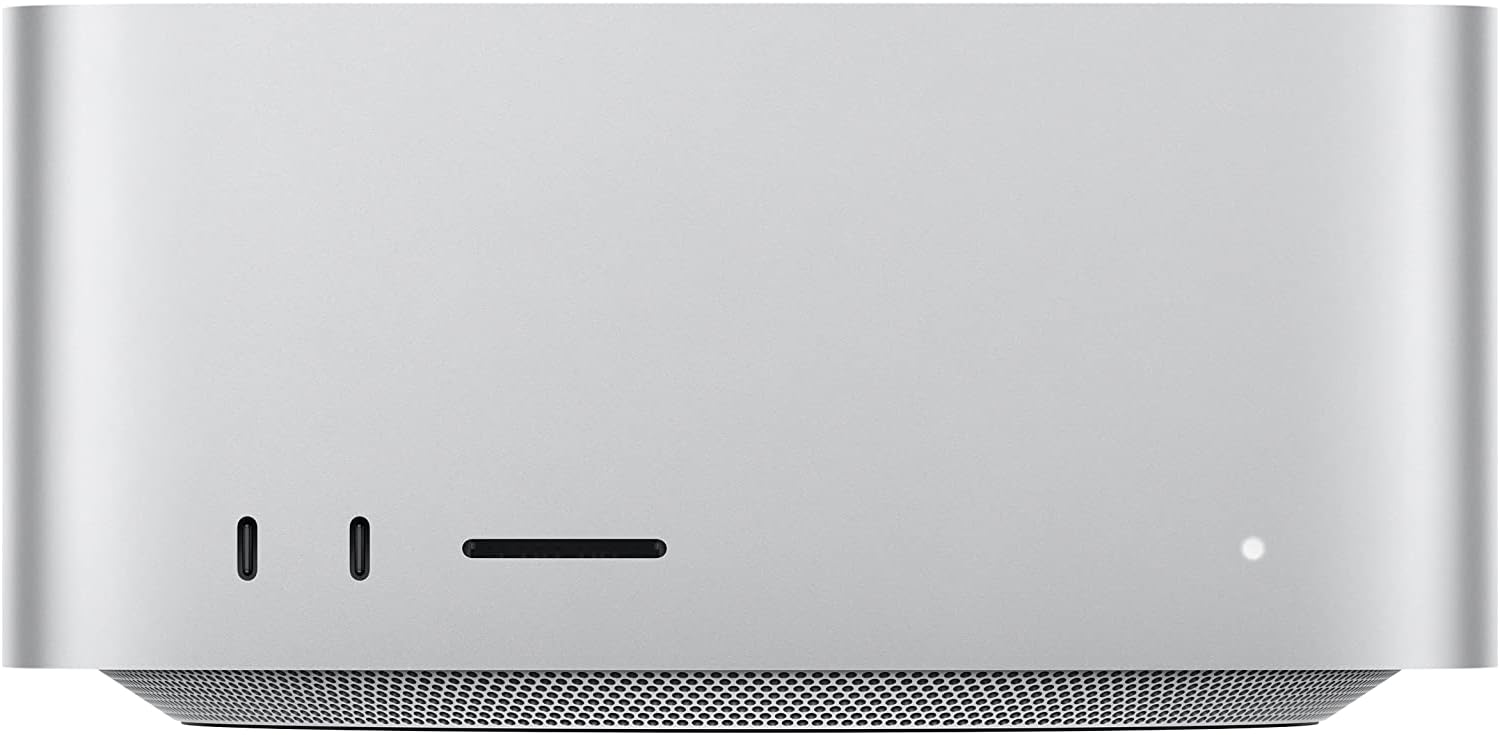
Mac Studio (M1 Ultra, 2022)
Released: 2022
Chip: Apple M1 Ultra
RAM: 64 GB – 128 GB unified memory
The Mac Studio arrived in early 2022 — not 2020 as previously noted — and the M1 Ultra configuration remains one of the most capable desktop computers Apple has ever shipped. The unified memory architecture means the CPU, GPU, and Neural Engine share a single high-bandwidth pool, which changes how the machine handles large media files, machine-learning inference, and complex renders. It's quiet, small, and fast in a way that still feels slightly implausible. By 2026, M3 and M4 Ultra Mac Studios are available with meaningfully more memory bandwidth and improved Neural Engine throughput, but the M1 Ultra is far from obsolete. It's still my daily machine and I have no pressing reason to change that.
Looking back from 2026
Laid out like this, the progression is striking. From 128 KB of RAM on the XT to 128 GB of unified memory on the Mac Studio — a million-fold increase over roughly thirty-five years. From a 4.77 MHz 8088 to an M1 Ultra with dozens of high-performance cores. The raw numbers are almost meaningless without context, but the experience of sitting down at each of these machines and feeling what was possible at that moment is something I remember clearly.
What the list also shows is that the machines I remember most fondly weren't always the fastest or the most powerful of their era. The NEXTcube was never a commercial success. The SE/30 was already being superseded when I was using it heavily. The PowerBook 170 cost a fortune and had a battery life measured in optimism. But each one represented a genuine idea about what a computer could be — and that, more than the specifications, is what makes them worth remembering.
The retro-computing community in 2026 is doing excellent work keeping these machines alive. If you have an old Mac, a NeXT, or a Sun workstation in storage, it's worth investigating what's available in terms of modern recap kits, SSD adapters, and network cards before assuming the machine is beyond saving. Many of them aren't.
I think my favourite might have been the SE/30. It was so expensive and an Apple Mac was an unusual computer for someone at Sun Microsystems to order. I had to get sign off from the head of the UK organisation. I convinced him it could run Unix and he signed the order begrudgingly!
- Details

2FA is mandatory for App Store Connect
You can enable two-step verification or two-factor authentication now for the Apple ID associated with your developer account.
Easy, right? Two-factor authentication for Apple ID is explained clearly by Apple and easy to set up. All you need to do is visit the Security section of your Apple ID account or the Apple ID section of Settings on your iPhone, iPad, or iPod touch.
Not so fast. If you have an important Apple ID then it is crucial that you look after it. Not just for all your purchases of music, books, magazines and apps, not even because of all your iCloud email and Calendars. More importantly for a deveoper it impacts your ability to function as a developer. You rely upon it so completely that your Apple ID is literally the most important thing in your Apple digital life. It is quite possible you won't realise this until it is too late.
- Details

Echo Link Amp. Stream and amplify hi-fi music to your speakers (requires compatible Echo device for Alexa voice control)
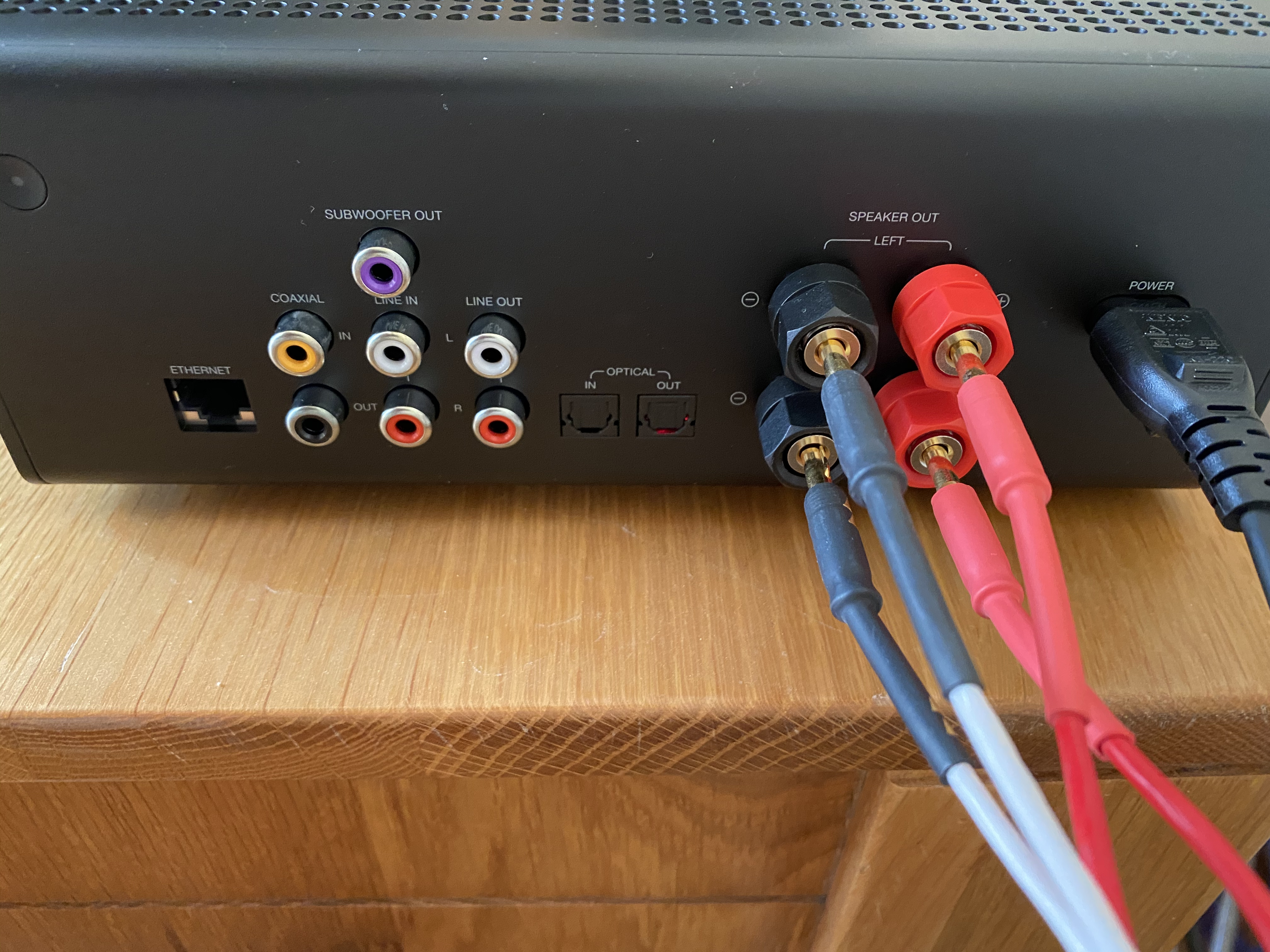
Echo Link Amp enables you to stream and amplify hi-fi music to your existing hi-fi speakers. It has both digital and analogue options for inputs and outputs, which makes it quite a niche product. But if you fit the niche its the perfect bridge between your Hi-fi and your Amazon Echo. I'm one of those people who fits the niche and I love this product and hope it improves with more features and better software over time.
- Details

NHS England released an official NHS contact tracing app for England and Wales in the App Store and Google Play on 23rd September 2020. The app was being tested on the Isle of Wight and a London borough for several months. It is not the same technology as was already spaffed in the £10m car crash that was the original app. But it is the same Government and team of advisors. This is a far better app.
NHS Scotland released their Protect.Scot app for Scotland on the 11th September 2020. This app was based on open source code originally developed on behalf of the Government of the Republic of Ireland and further developed on behalf of the Government of Northern Ireland. It cost less than a tenth of the England and Wales app to develop and is also the basis for apps for Jersey and Gibraltar.
The app for England is completely completely different to the others although they all use Apple/Google COVID-19 exposure notifications system, and there is a shared notification technology because of that. The differences are in the user experience and the booking of tests so, if in the UK you should use the one relevant to the PostCode you live in.
Apple and Google are only allowing approved local public health authorities to publish such apps such is the sensitivity of the data required.
TL:DR Both apps are good Scotland app has a far more reassuring onboarding process and draws you in to the idea that you are helping yourself and others. Both properly respect data privacy issues regarding the exposure notification information although what happens to venue check-in and test information in the England app is a little less clear to me in terms of data privacy. These apps could be a key pillar of the track, trace, isolate strategy that we still need. I'd recommend installing them unless certain special circumstances affect you.
Note This article was originally published on my LinkedIn.
- Details

iOS 12.5.1
iOS 12.5.1 fixes an issue where Exposure Notifications could incorrectly display logging profile language. Exposure Notifications was the one new feature in iOS 12.5, backported from later releases of iOS. It lets you opt-in to the COVID-19 Exposure Notifications system on your iPhone which enables Privacy-Preserving Contact Tracing. System availability depends on support from your local public health authority. The UK COVID-19 apps do not support iOS 12.5.1 iOS 12.5 also provided some security updates and Apple recommend it for all users of devices that can be updated to iOS 12.5 - iPhone 5s, iPhone 6, iPhone 6 Plus, iPad Air, iPad mini 2, iPad mini 3, and iPod touch (6th generation).


TL:DR — Install right away. COVID-19 Exposure notifications system support, Bug fixes, and security fixes.
Step by step instructions
- Open 'Software Update' from 'Settings -> General'
- Download and install, a restart is required and it takes some time
- Details

Microsoft Office for Windows or Mac — What You Need to Know in 2026
If you're still running Office 2016 or Office 2019, the situation has changed significantly. Microsoft ended all support for both versions on October 14, 2025 — meaning no further security patches, no bug fixes, and no technical support of any kind. The apps may still open on your machine, but running unsupported software exposes you to security vulnerabilities that will never be fixed. For most users, staying put is no longer a sensible option.
The connectivity picture is even starker. Office 2016 and Office 2019 for Windows lost the ability to connect reliably to Microsoft 365 services — including Exchange Online, OneDrive, and SharePoint — back in October 2023. If you've noticed Outlook behaving oddly, files failing to sync, or authentication errors, this is almost certainly why. Those issues won't be resolved by reinstalling or repairing your existing Office installation. The version itself is the problem.
Mac users face an additional deadline. From July 13, 2026, Office 2019 for Mac — along with Office 2021 for Mac — will enter a reduced functionality mode on devices running macOS. In practice, that means the apps will open and print existing files but will no longer let you edit, save, or create documents. Office 2019 for Mac reached end of support on October 10, 2023, so there is no update path available — the only resolution is to move to a newer release entirely.
After October 14, 2025, Microsoft no longer provides technical support, bug fixes, or security fixes for Office 2016 and Office 2019.
What are your options?
The two realistic paths forward are a Microsoft 365 subscription or a one-time purchase of a perpetual licence. Microsoft naturally pushes the subscription route — Microsoft 365 Apps for enterprise or the consumer Microsoft 365 Personal and Family plans — and for users who want the latest features, AI integrations, and guaranteed compatibility with Microsoft's cloud services, that's a reasonable choice.
That said, subscriptions aren't for everyone. If you'd rather make a single purchase and own your software outright, Office LTSC 2024 is the current perpetual release for Windows and Mac. It receives mainstream support through October 9, 2029, and — crucially — it's supported for connecting to Microsoft 365 services for the same period. Office LTSC 2021 is still available but its connectivity support window closes in October 2026, so it's a short runway for a new purchase.
For home and small business users, the consumer equivalent of the perpetual licence is Microsoft Office 2024 (Home & Student or Home & Business editions), available as a one-time purchase from Microsoft or authorised retailers. It installs on one PC or Mac, carries no recurring fee, and is fully supported through 2029. If the subscription model has always felt like renting something you've already paid for several times over, this remains a legitimate and cost-effective alternative — just make sure you're buying from an authorised source.
Key dates at a glance
- October 13, 2020 — Office 2016 for Mac reached end of support
- October 10, 2023 — Office 2019 for Mac reached end of support; Office 2016 and 2019 for Windows lost Microsoft 365 service connectivity support
- October 14, 2025 — Office 2016 and Office 2019 for Windows reached full end of support
- July 13, 2026 — Office 2019 and Office 2021 for Mac enter reduced functionality mode on older macOS versions (editing and saving disabled)
- October 13, 2026 — Office LTSC 2021 connectivity support for Microsoft 365 services ends
- October 9, 2029 — Office LTSC 2024 / Office 2024 end of support
Do you need to act immediately?
If you're on Windows and using Office purely offline — no Exchange, no OneDrive, no SharePoint — your apps will continue to function for now. The risk is cumulative: without security updates, any vulnerability discovered from October 2025 onwards will remain permanently unpatched. For anything involving sensitive data or regular internet connectivity, that's a meaningful exposure.
If you're on a Mac running Office 2019, the July 2026 reduced functionality deadline makes the decision more urgent. Once that mode kicks in, the software becomes effectively read-only — and because Office 2019 for Mac can no longer receive updates, there is no fix short of upgrading to a current release. Waiting until July to act will leave you scrambling.
The minimum macOS version required to update Office sucessfully is macOS 12 Monterey. If your Mac can run Monterey or later and you upgrade your Office version to a currently supported release, you'll be clear of the July 2026 cutoff.
- Details
